How to Create Reusable Quotation Templates for Faster Sales Processes
Learn how to build standardized quotation templates that reduce manual work and ensure consistent customer communication.
When to Use Quotation Templates
Quotation templates are ideal when you:
- Repeatedly quote the same services or products.
- Want to ensure consistency across team members.
- Need to include pre-set terms, pricing, and descriptions.
- Want faster turnaround when generating quotes.
Step-by-Step Process
Step 1: Navigate to Quotation Templates
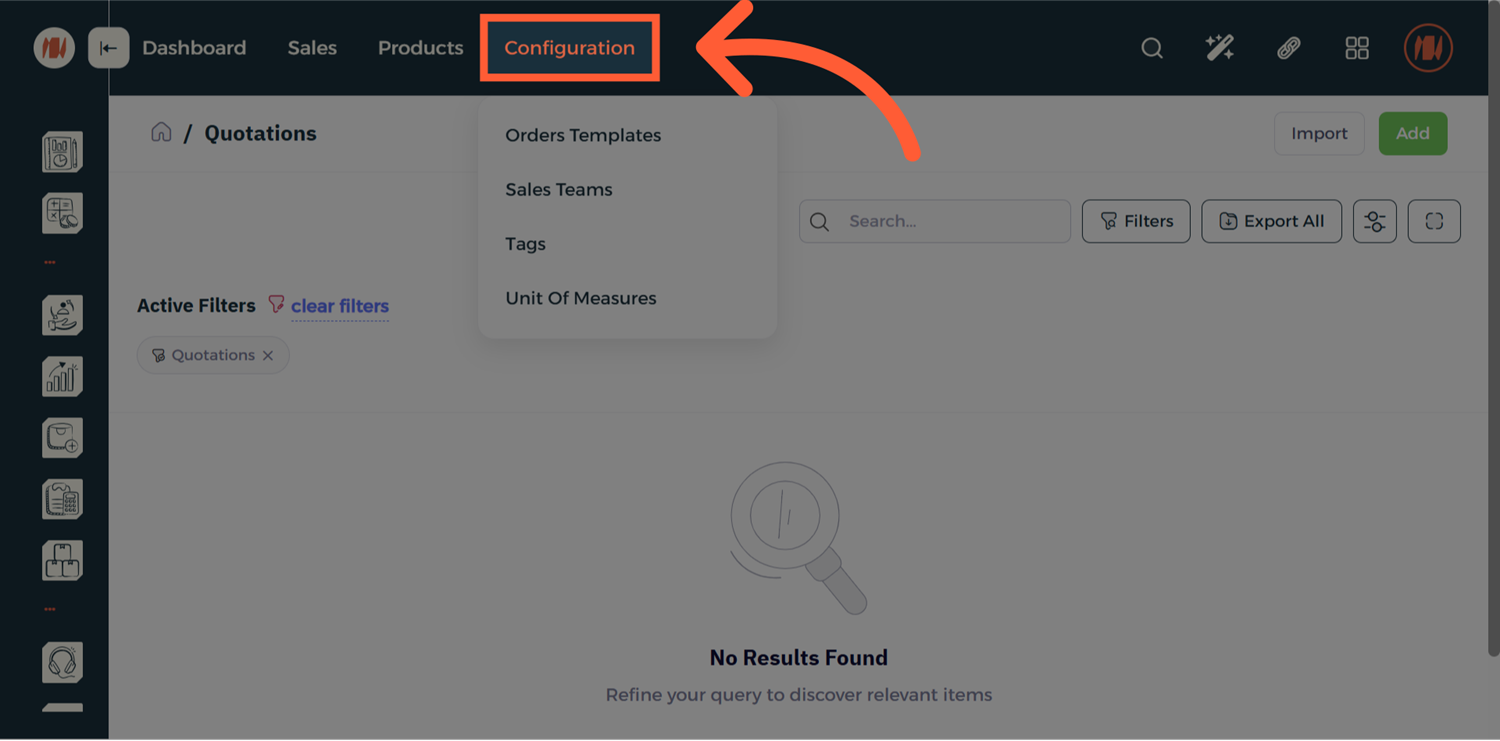
From the Quotation page, select Configuration.
Step 2: Select Order Templates
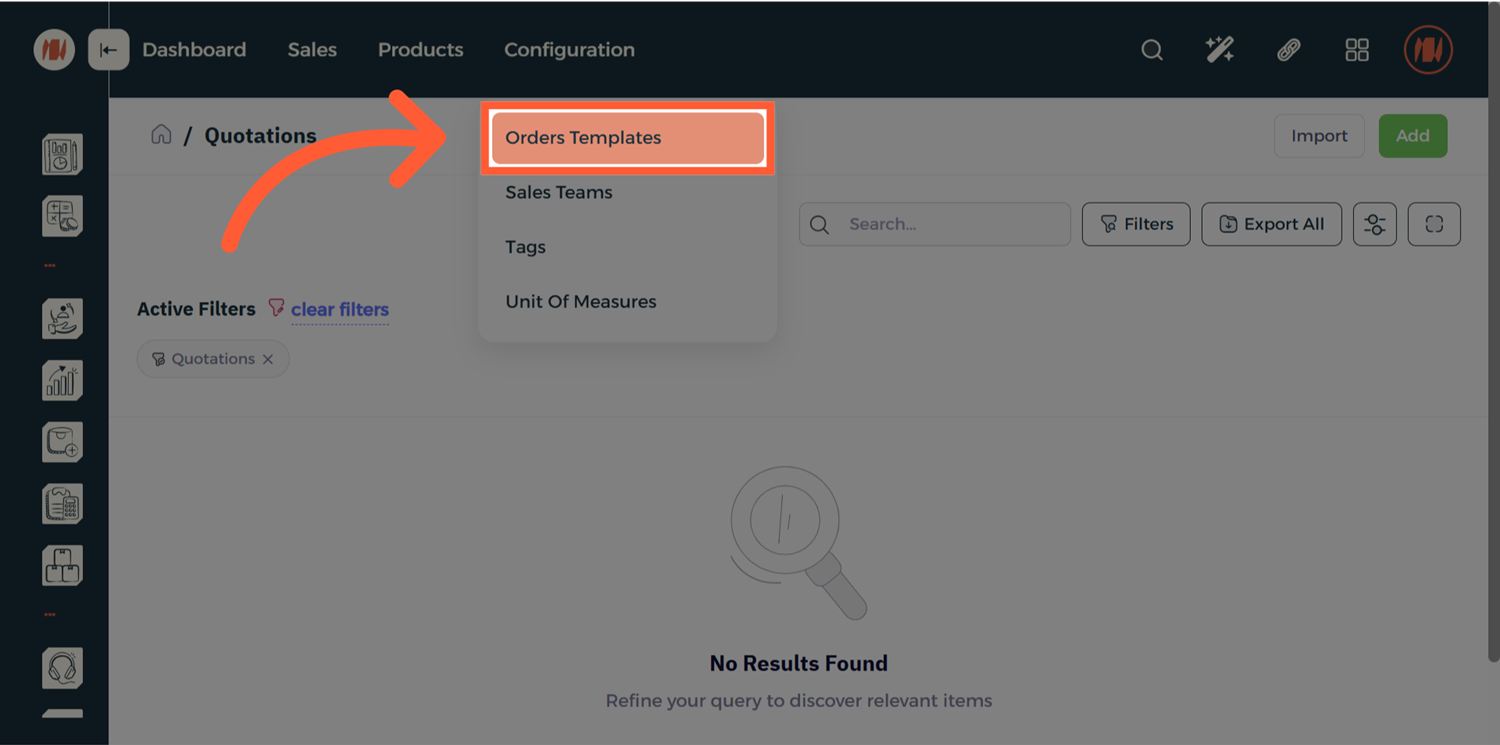
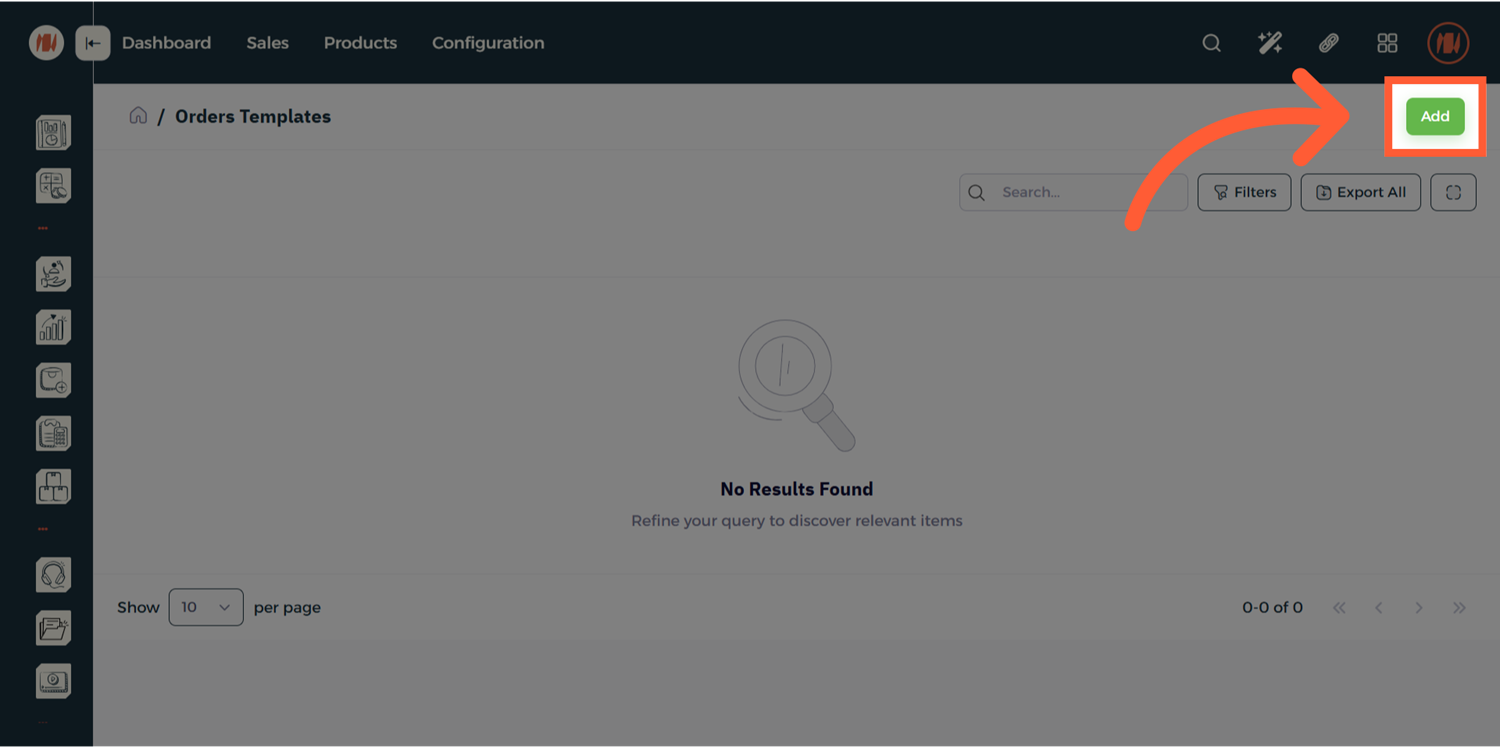
Then choose Order Templates. When you arrive, click the Add button on the top-right of the screen.
Step 3: Add Order Template
Click on the add button on the top-right of the screen.
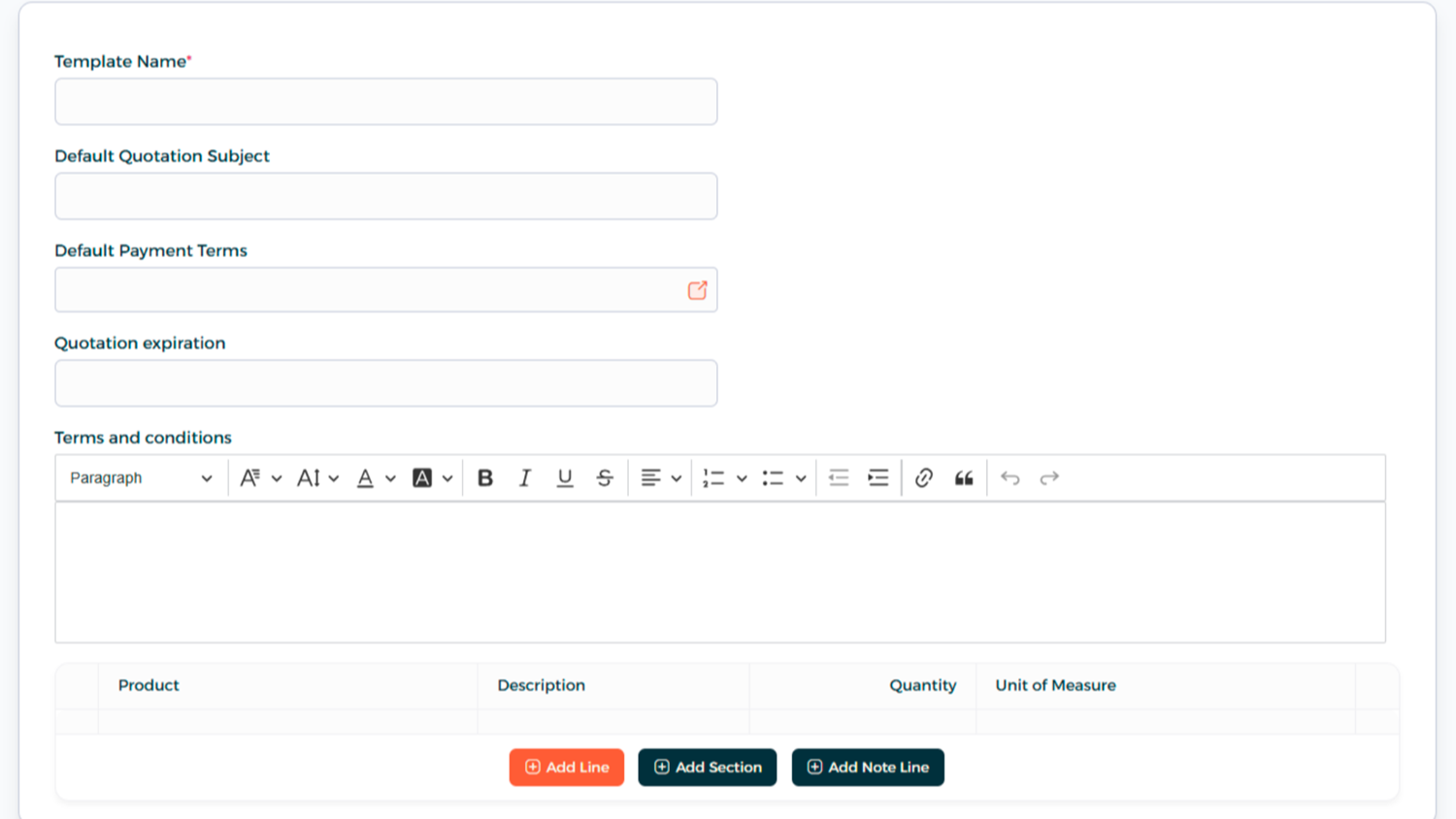
- Add Template Name and Quotation Subject.
- Enter Payment Terms and Quotation Expiration.
- Add product or service line items, including quantity and Unit of Measure.
Step 4: Save and Activate
Click Create. Make sure the Status is set to Active — only active templates will appear when creating a new quotation.
Step 5: Apply Template to a Quotation
- Go to Sales → Quotations.
- Click Add.
- Choose the Quotation Template.
FAQ
Q: Will editing a template affect quotations already sent? No. Changes to a template will only apply to future quotations.
Q: Can I duplicate a template and make changes? Yes. This is helpful when creating slight variations for different customer tiers.