How to Create and Manage Customer Price Lists in Invent ERP
Learn how to configure pricing strategies, customer-specific pricing, and product price lists to support different sales scenarios.
The Price List feature in Invent ERP allows you to define customized pricing rules for customers, customer groups, and vendors. It provides flexibility for:
- Offering special rates to VIP clients.
- Setting bulk/volume pricing for wholesale customers.
- Running time-limited promotional prices.
- Managing multi-currency pricing efficiently.
Step-by-Step Process
Step 1: Access the Price List Section
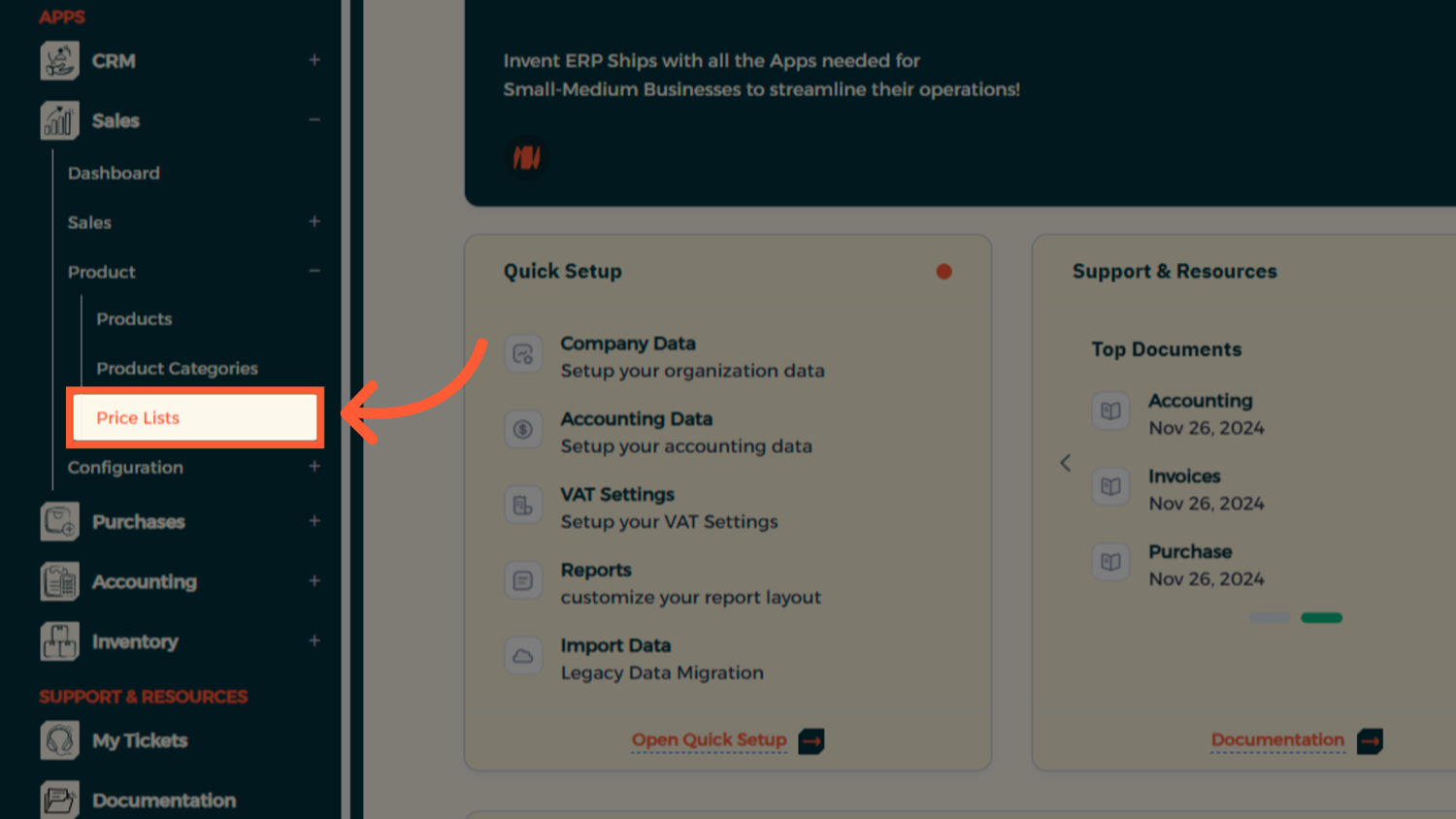
Navigate to Sales from the main menu → Under Products, select Price List
Step 2: Create a New Price List
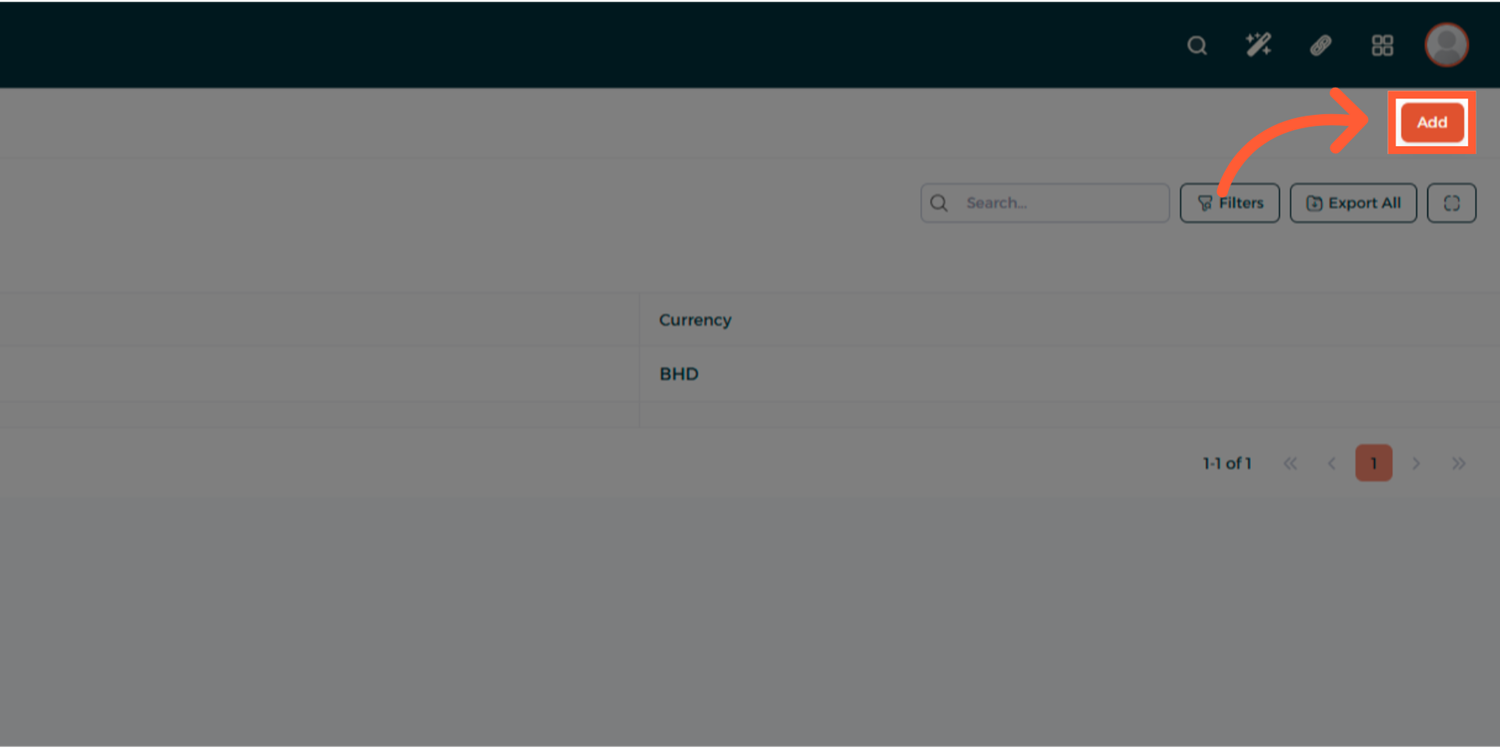
Click on add to create a new Price List
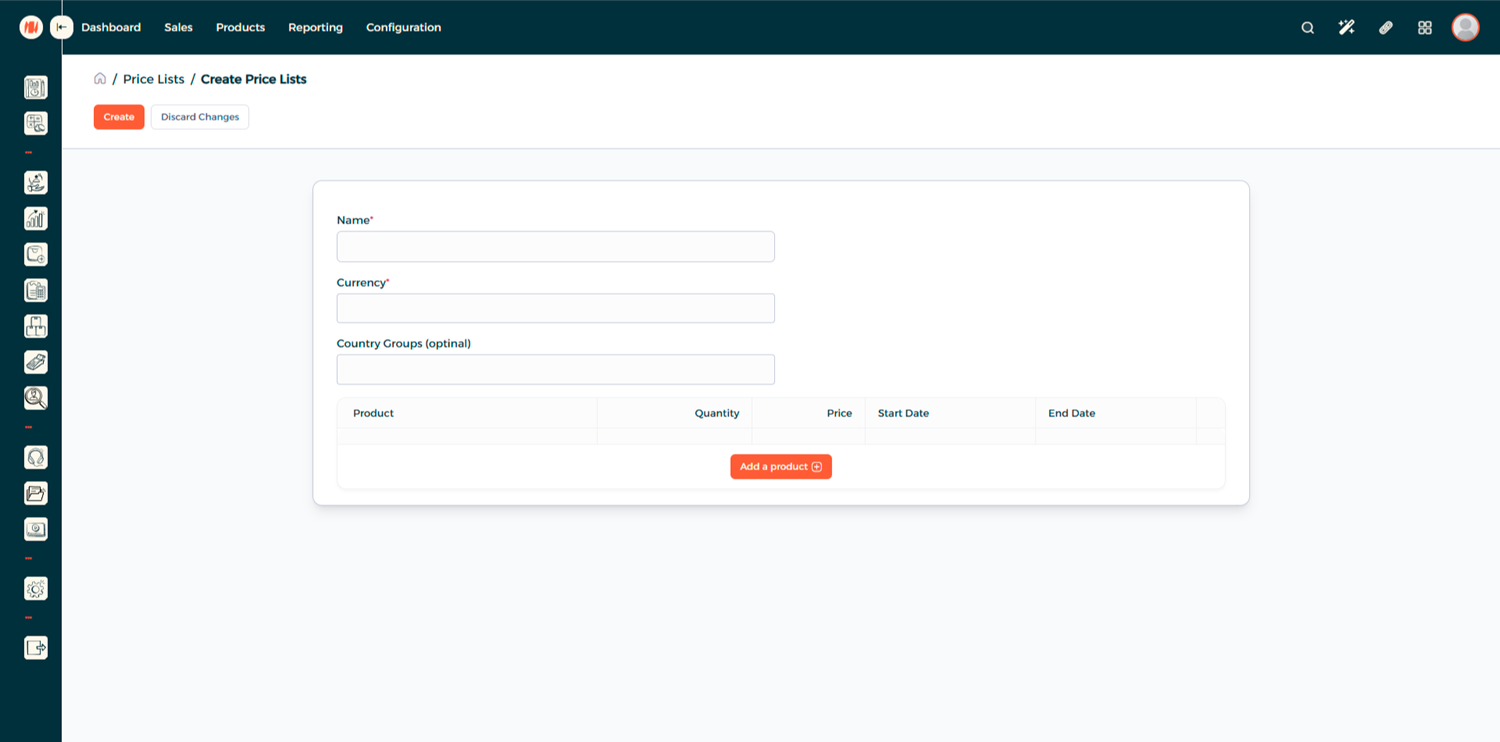
- Name: Enter a clear name for the price list.
- Currency: Choose the currency applicable to this price list.
Step 3: Define Pricing Rules
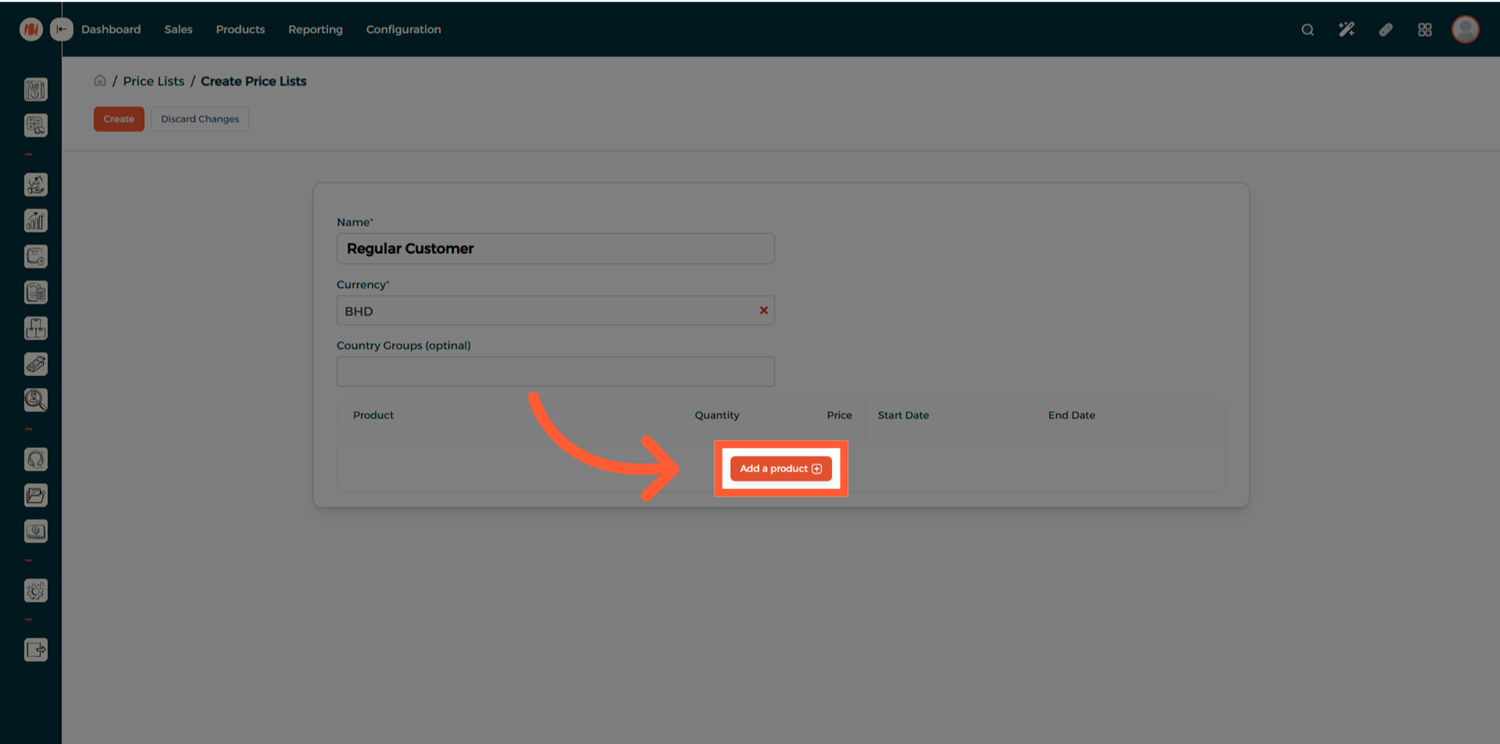
Click Add Product and specify the rule.
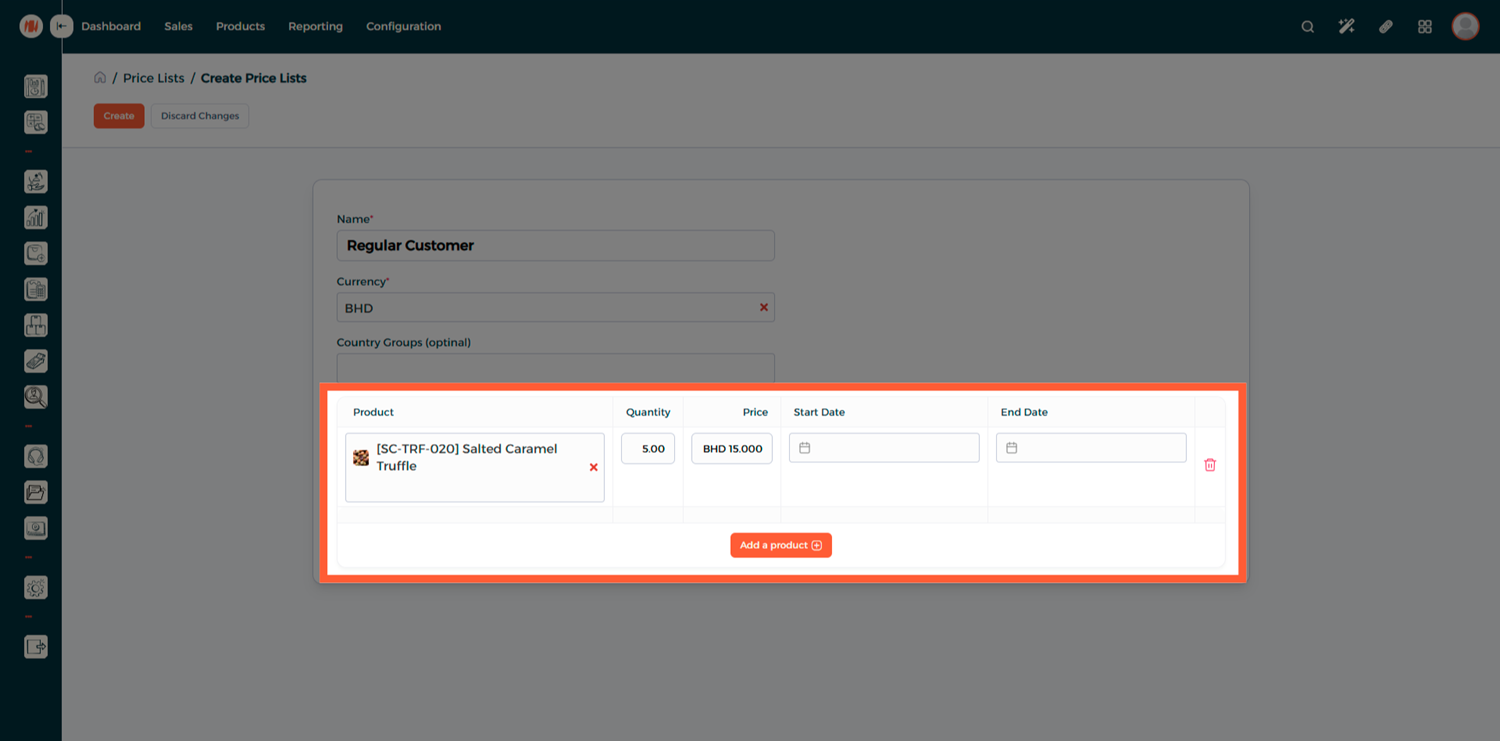
Step 4: Add Multiple Rules
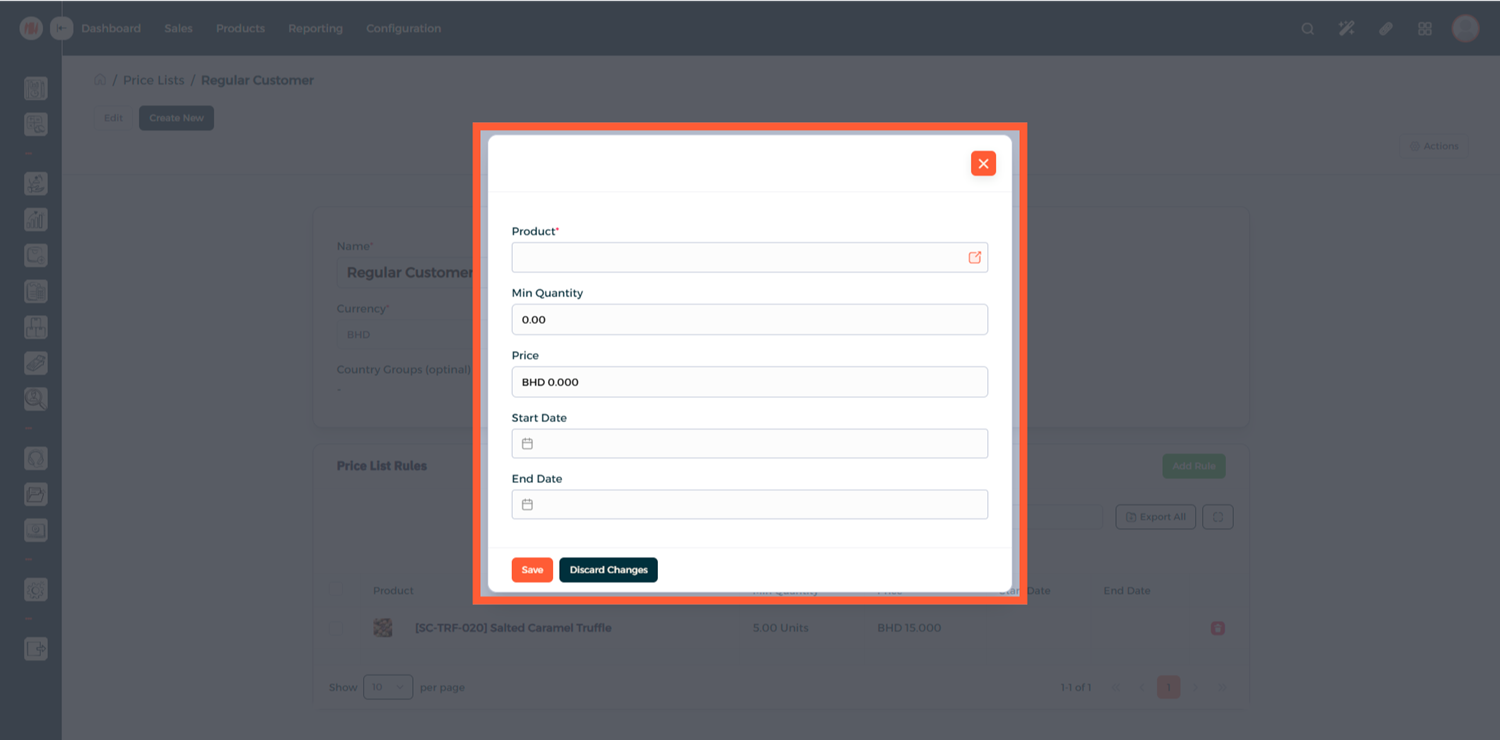
Click Add Rule to define pricing rules for other products as needed.
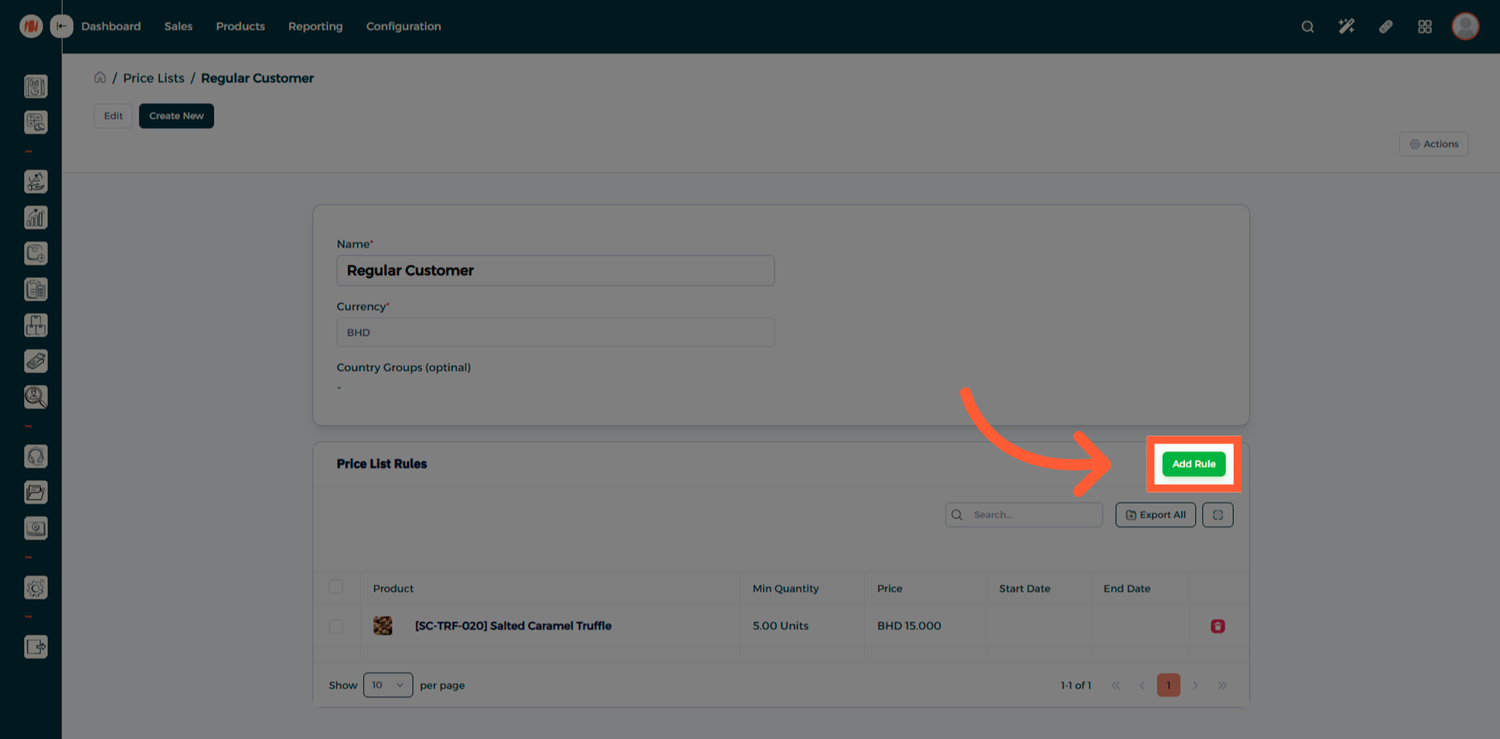
Validity Period (optional): Use the Start Date and End Date fields to limit the price list to a specific promotional period.
Step 5: Apply Price List in Quotations
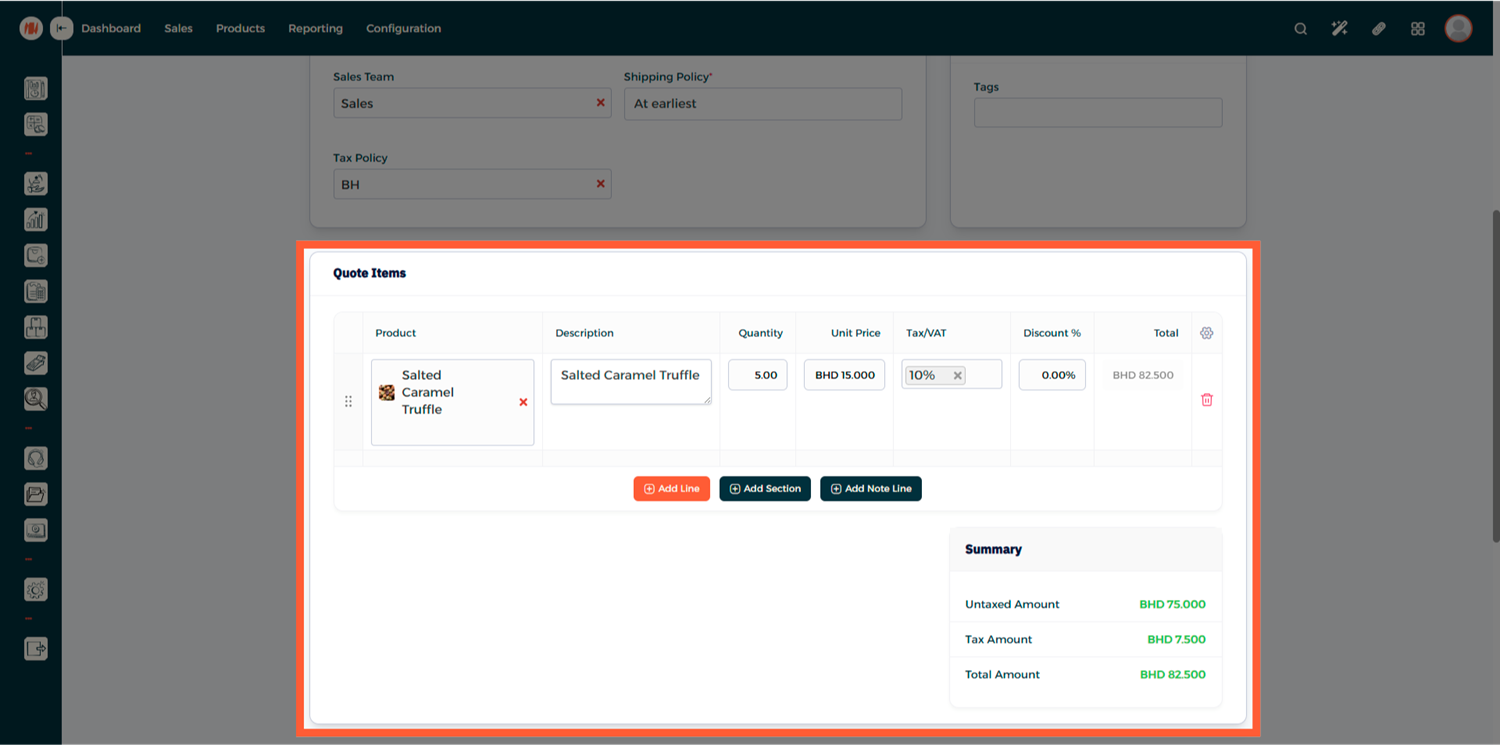
When creating a new Quotation, select the desired Price List.
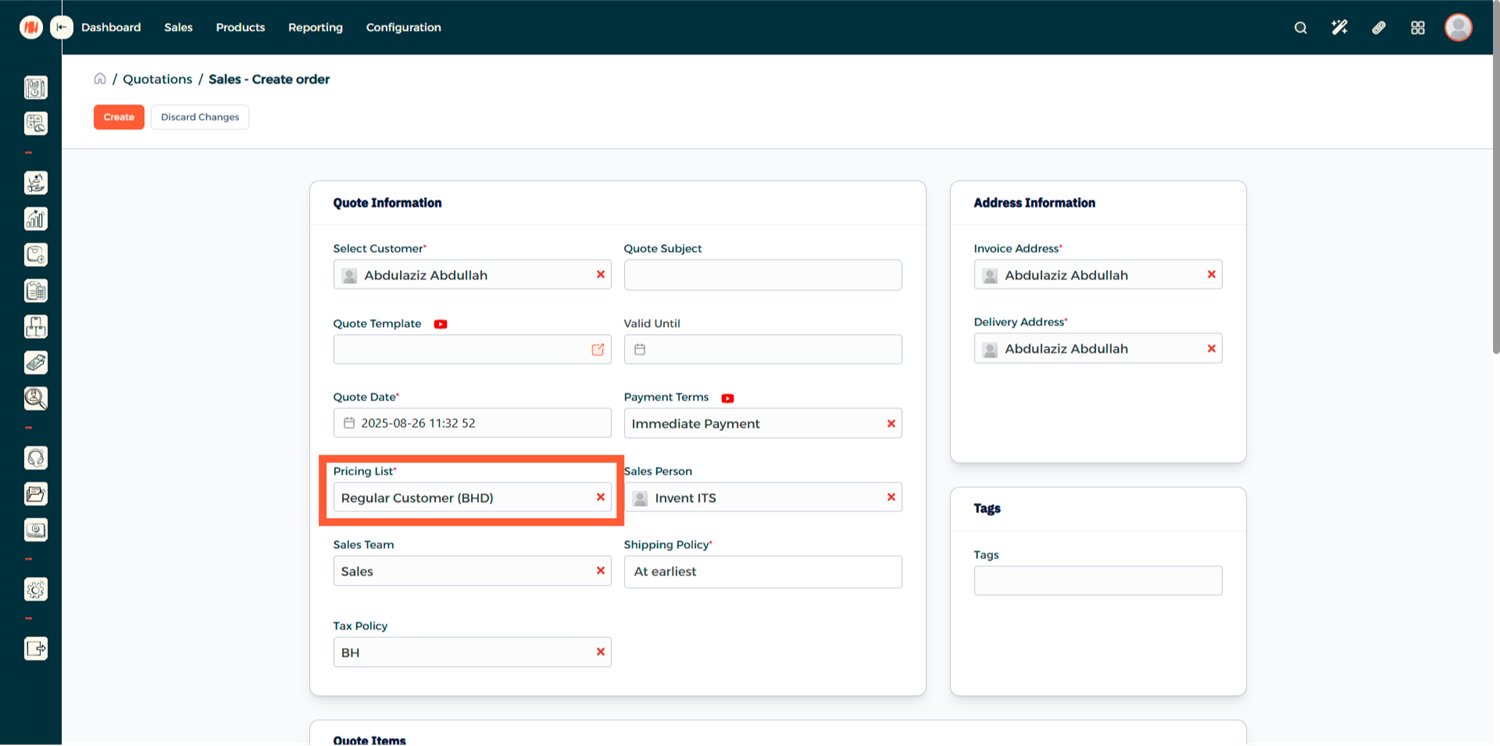
Add products to the quotation. The pricing from the selected price list will automatically apply when the quantity matches the defined rule.
Step 6: Assigning a Price List to a Customer
You can also link a price list directly to a customer record to ensure it is automatically applied during transactions.
- Access the CRM
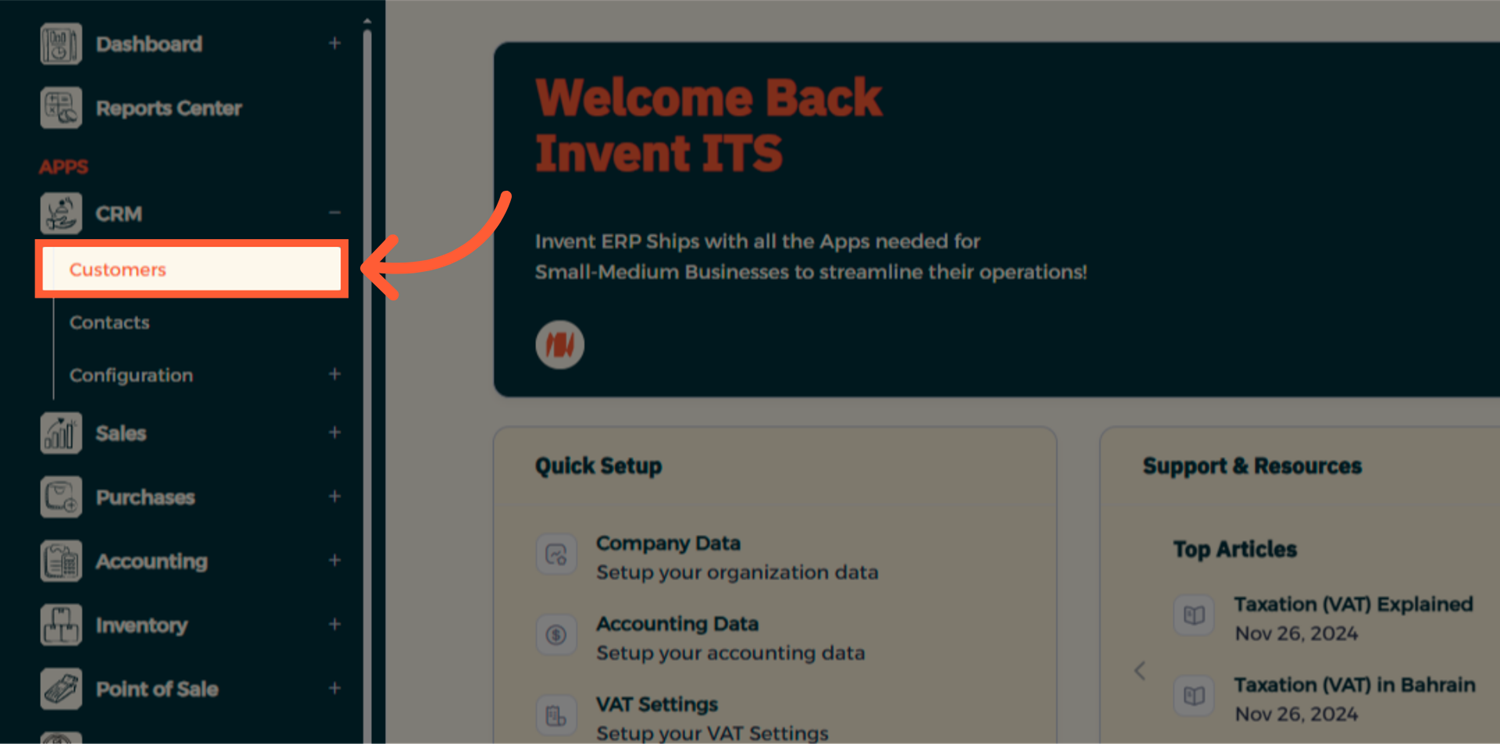
- Navigate to the side menu, open CRM, and select Customers.
Step 7: Choose the Customer
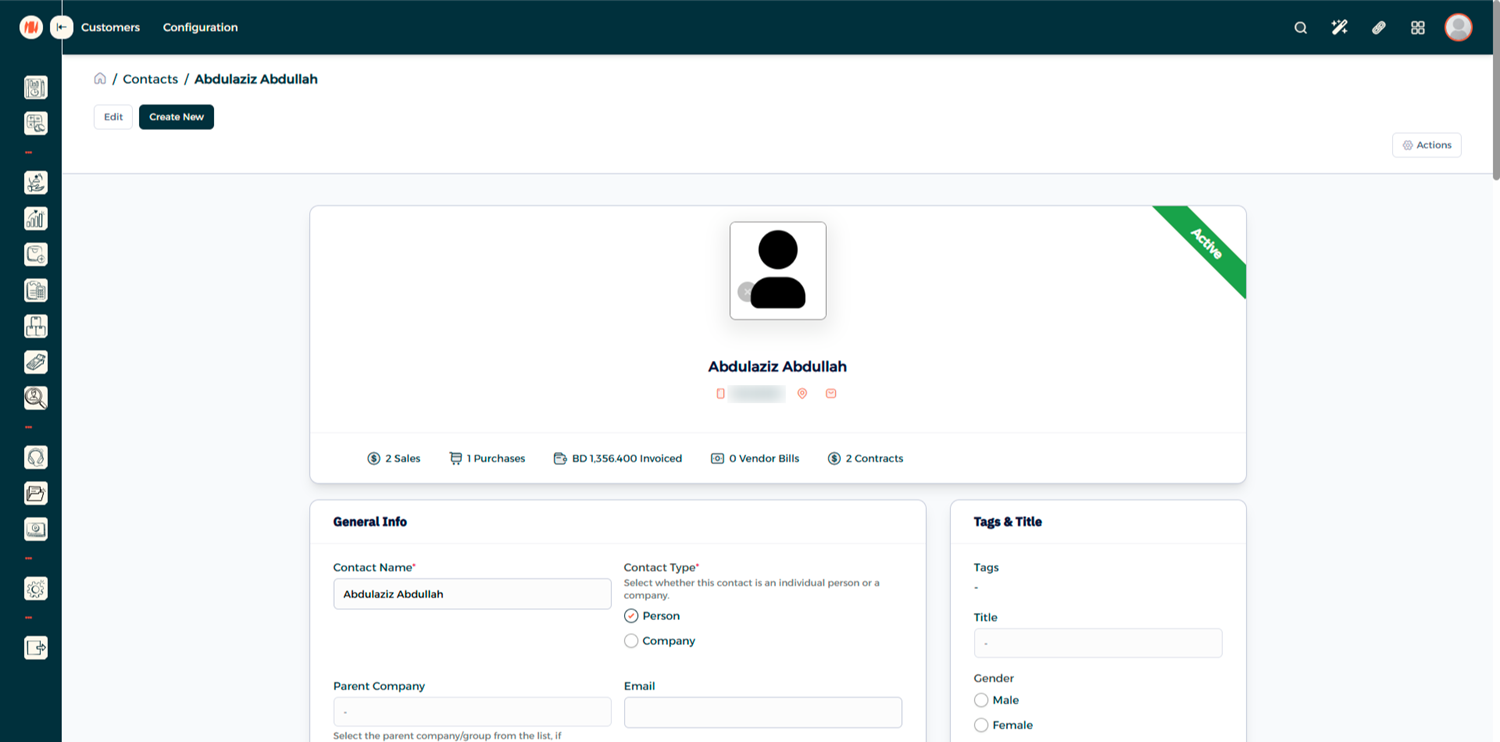
Select the customer you want to assign the price list to.
Step 8: Set the Price List
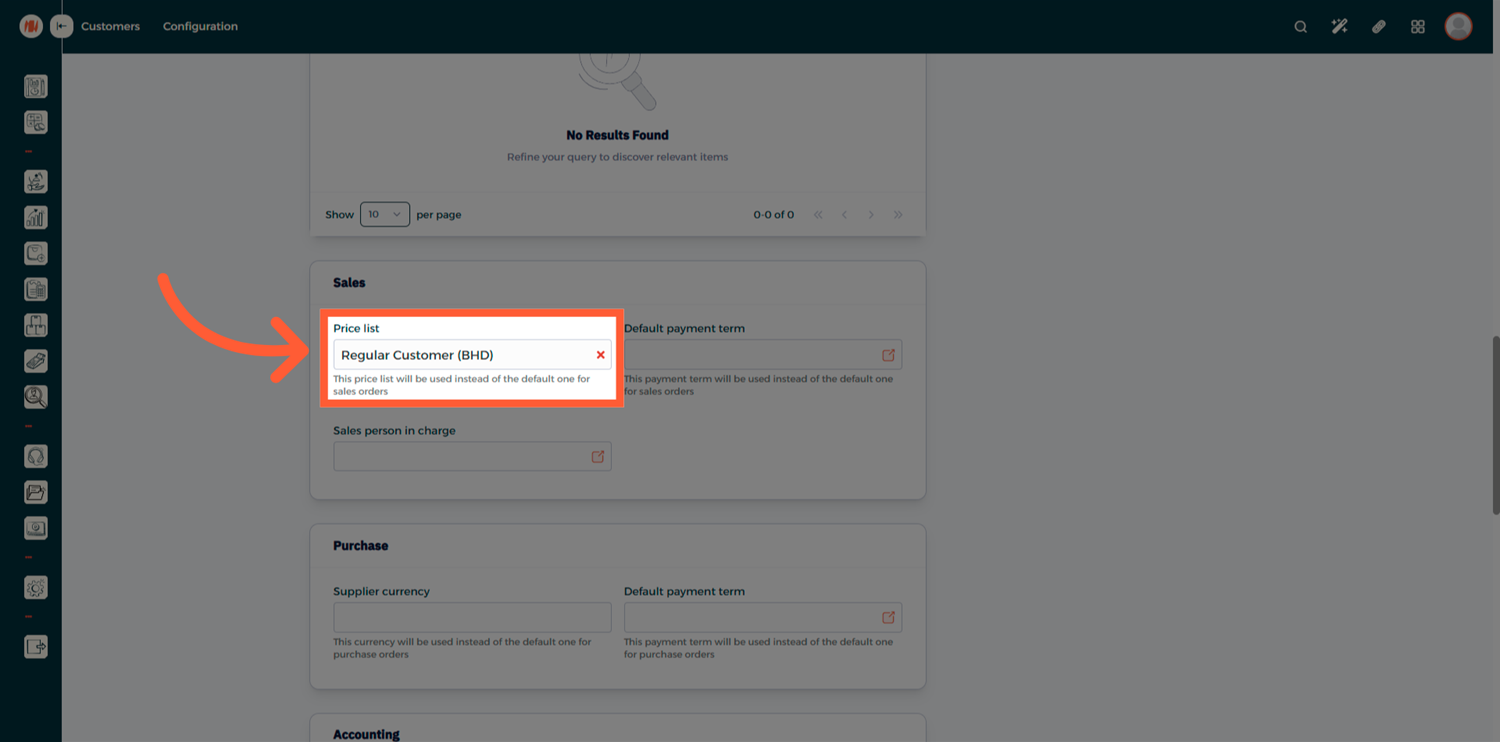
Scroll down to the Sales section and Assign the required Price List.
Price Lists in Invent ERP help you manage customized pricing with ease—whether for VIPs, wholesale deals, or promotional periods. By automating pricing rules and linking them to customers or quotations, you ensure consistency and efficiency across your sales process.
FAQ
Q: Can I apply different price lists to different customers? Yes, you can assign a specific price list to individual customers through their profile under the CRM module.
Q: What happens if a product is added without meeting the Min Quantity? The default product price will be applied unless the minimum quantity defined in the price list is met.
Q: Can I create a price list for a specific time period only? Yes, each price rule can have a start and end date to define its validity.
Q: Is it possible to use multiple currencies in different price lists? Absolutely. You can define a currency per price list, allowing support for multi-currency operations
Q: Will the system automatically choose the correct price list? If a price list is assigned to a customer, it will be applied automatically during quotation or sales order creation.