How to Automate Business Processes and Workflows in Invent ERP
Learn how to automate repetitive tasks, approvals, notifications, and operational processes to improve efficiency and consistency.
Automated workflows are a powerful feature in Invent ERP that link tasks across modules and trigger actions without manual input. Setting up workflows reduces repetitive work, ensures consistency, and drives process efficiency.
Why Automated Workflows Matter?
Workflows help you automatically handle tasks such as:
- Confirming a sales order
- Confirming and validating a delivery note
- Creating an invoice and registering a payment
Step-by-Step Process
Step 1: Navigate to the Workflow
From the Main Menu, go to the Sales or Purchase module. Under Configuration, select Auto Workflow.
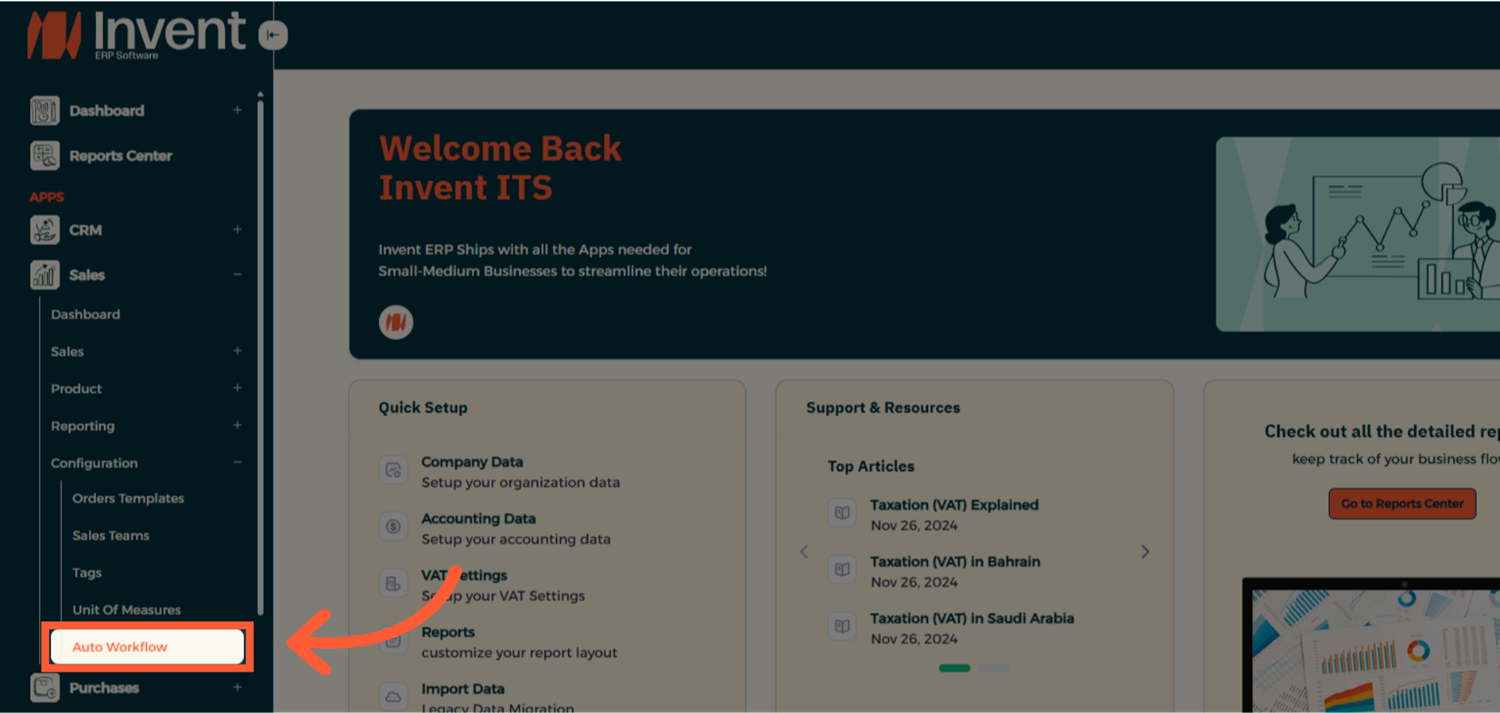
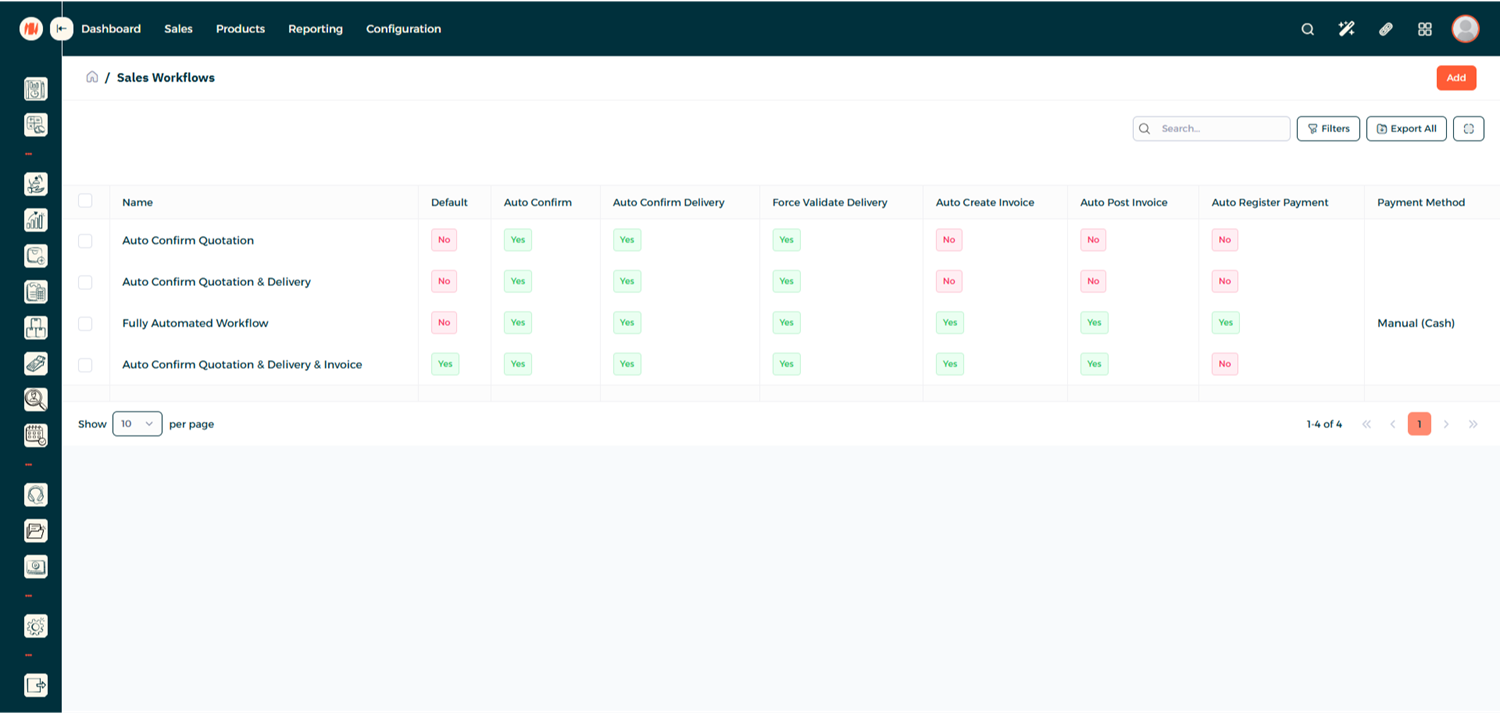
Step 2: View Workflows Page
From the Workflows page, you can view existing workflows, edit them, or click Add to create a new one.
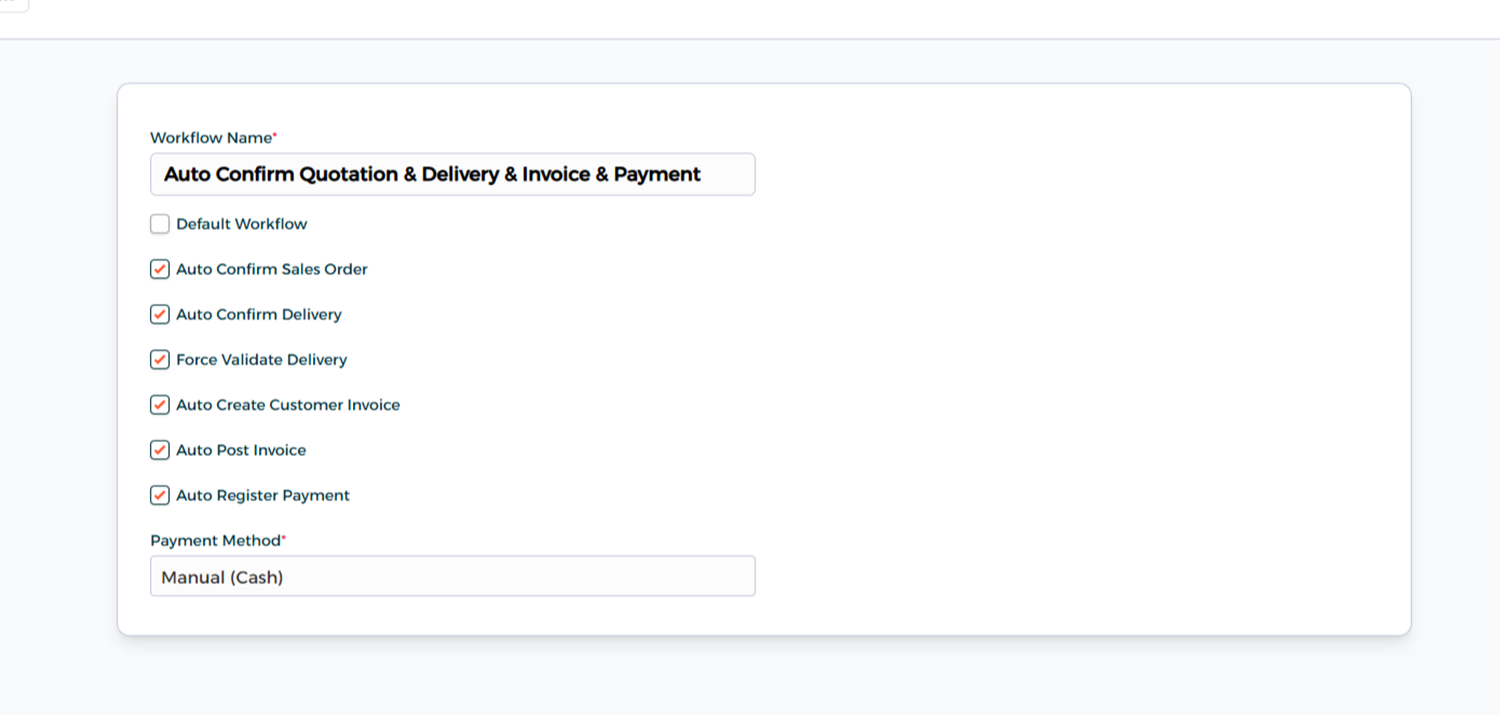
Step 3: Create a Workflow
Enter a name for your workflow and select the checkboxes for the actions you want the system to automate.
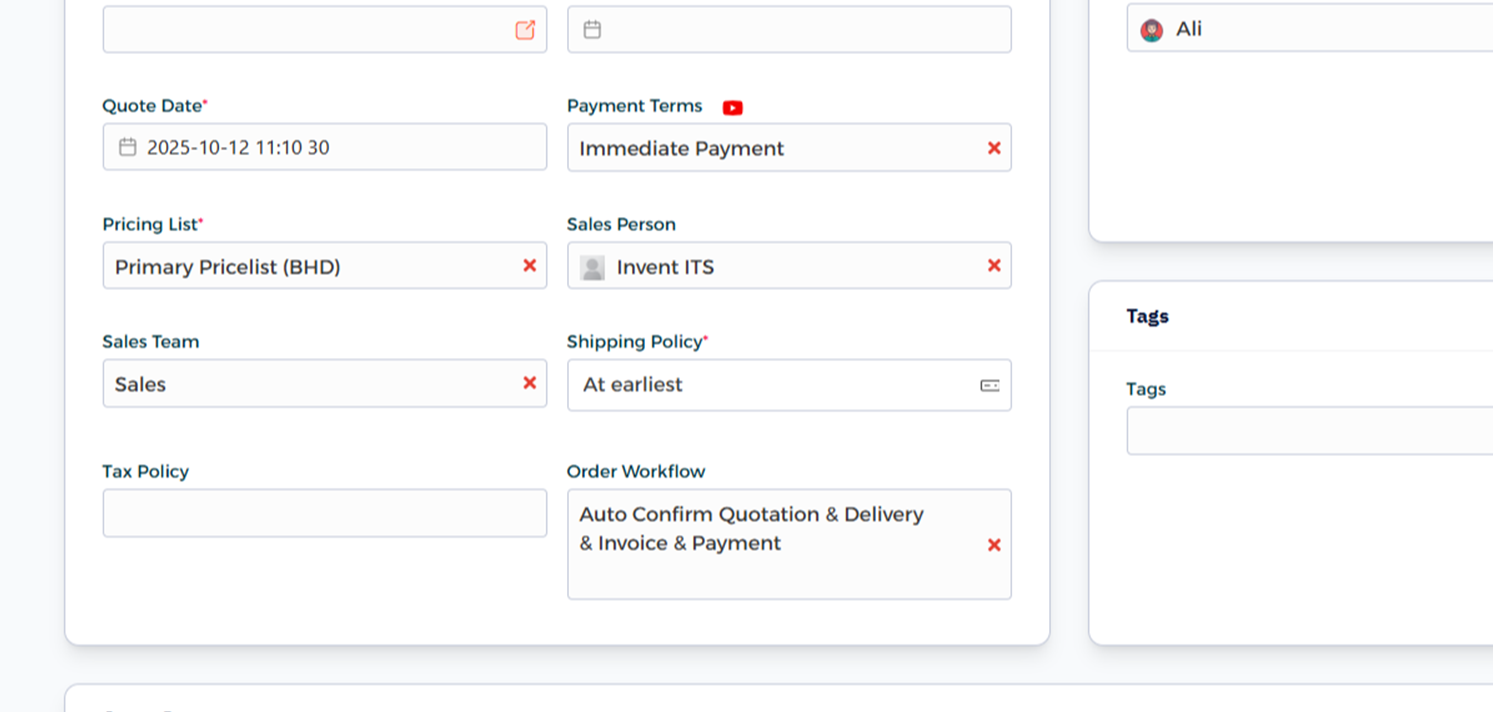
Step 4: Add the Workflow to an Order
When creating a Sales Order, Quotation, Invoice, or Vendor Bill, assign the workflow to it.
Notes & Tips
- Create separate workflows for Sales and Purchase to automate specific processes in each department.
- Make sure the workflow name clearly reflects its purpose.
- You can edit an existing workflow at any time.
FAQ
Q: What does an Auto Workflow do? It automates certain actions — like confirming a quotation, validating an invoice, or posting a payment — without manual intervention.
Q: Can a workflow be applied automatically? Yes. When you mark a workflow as Default Workflow, it will be automatically linked whenever the corresponding document is created or updated.
Q: Will workflows affect existing transactions? No. Workflows apply only to new documents created after the workflow setup.