How to Onboard Your Company in Invent ERP?
Setting up your company correctly is the first step to using Invent ERP in Saudi Arabia and ensuring compliance with ZATCA e-invoicing regulations.
Step-by-Step Process
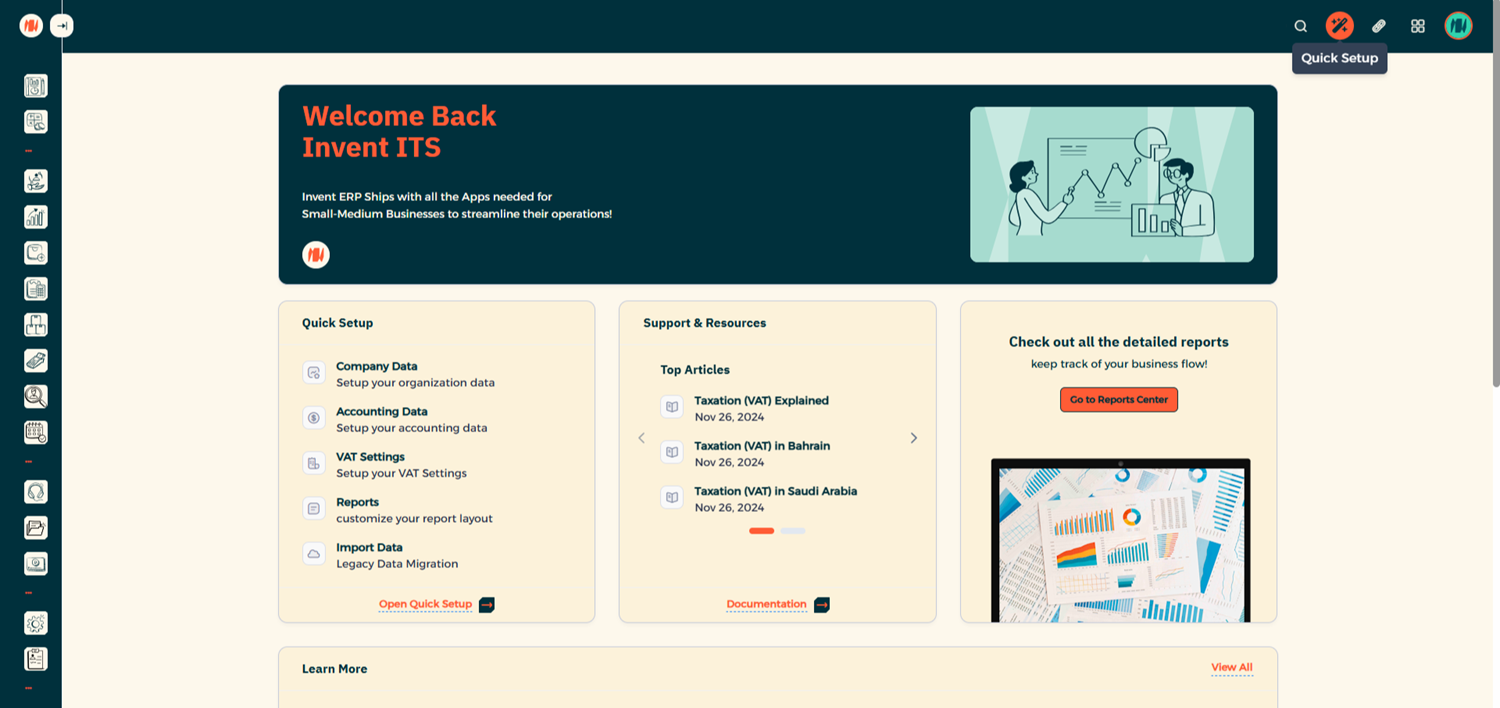
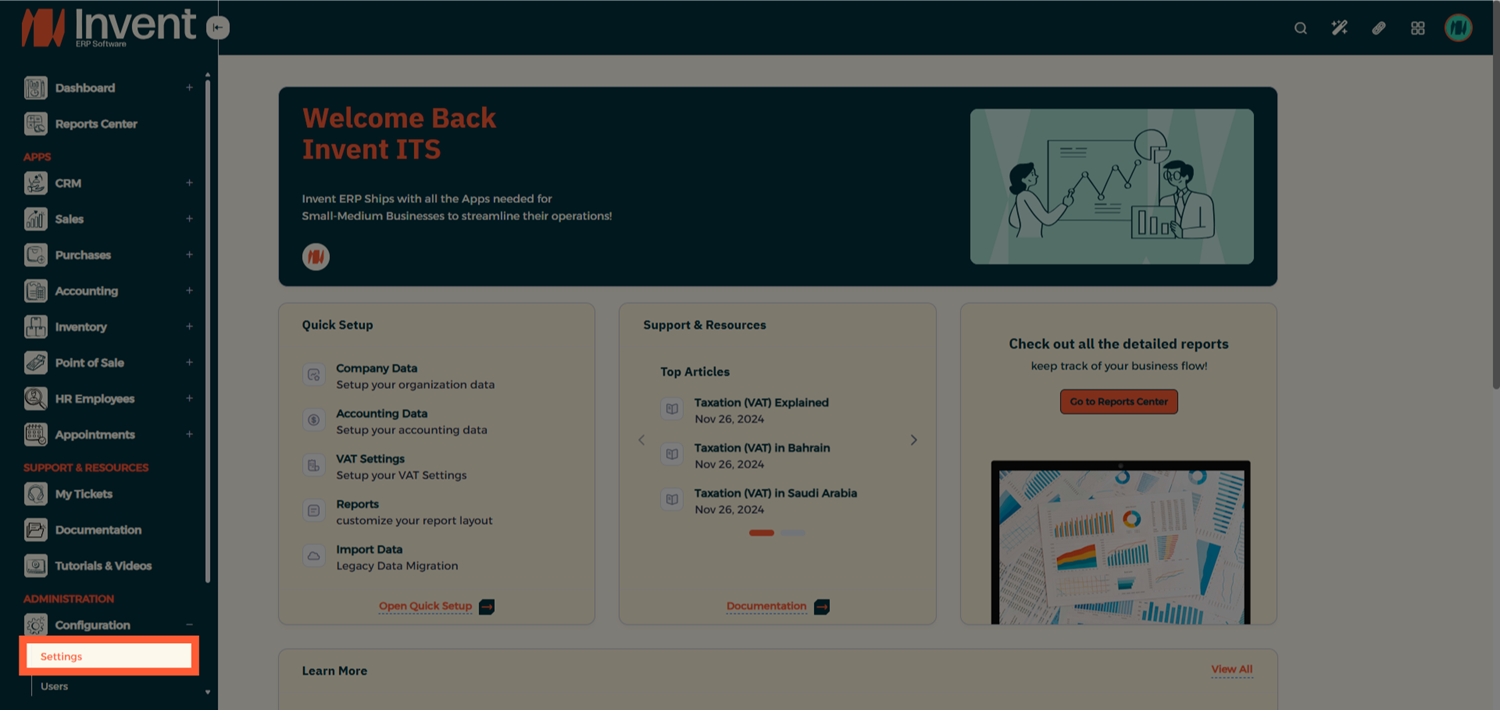
Step 1: Open Quick Setup
From your Homepage, go to Quick Setup to begin the company onboarding process.
Step 2: Add Your Company Information
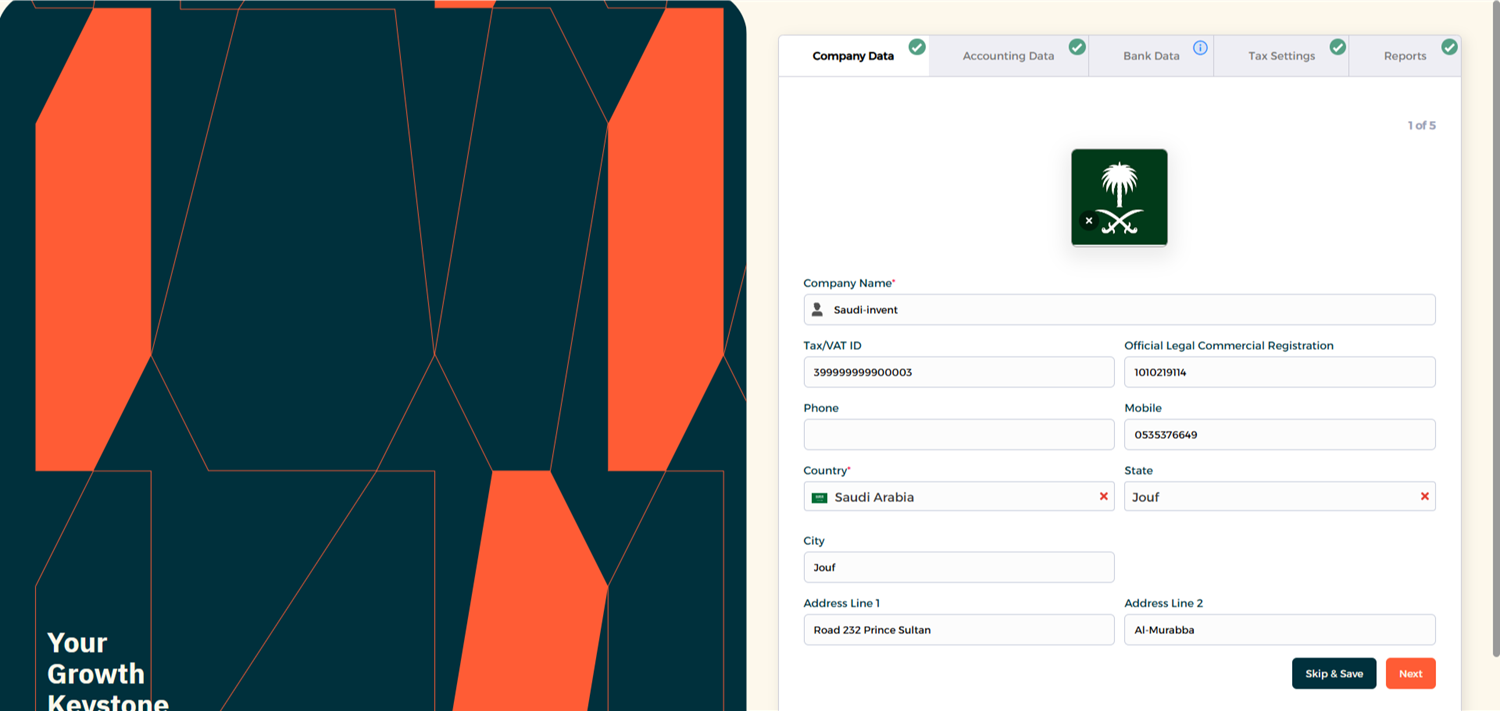
Fill in your company details:
- Company name, contact details, address, and company logo.
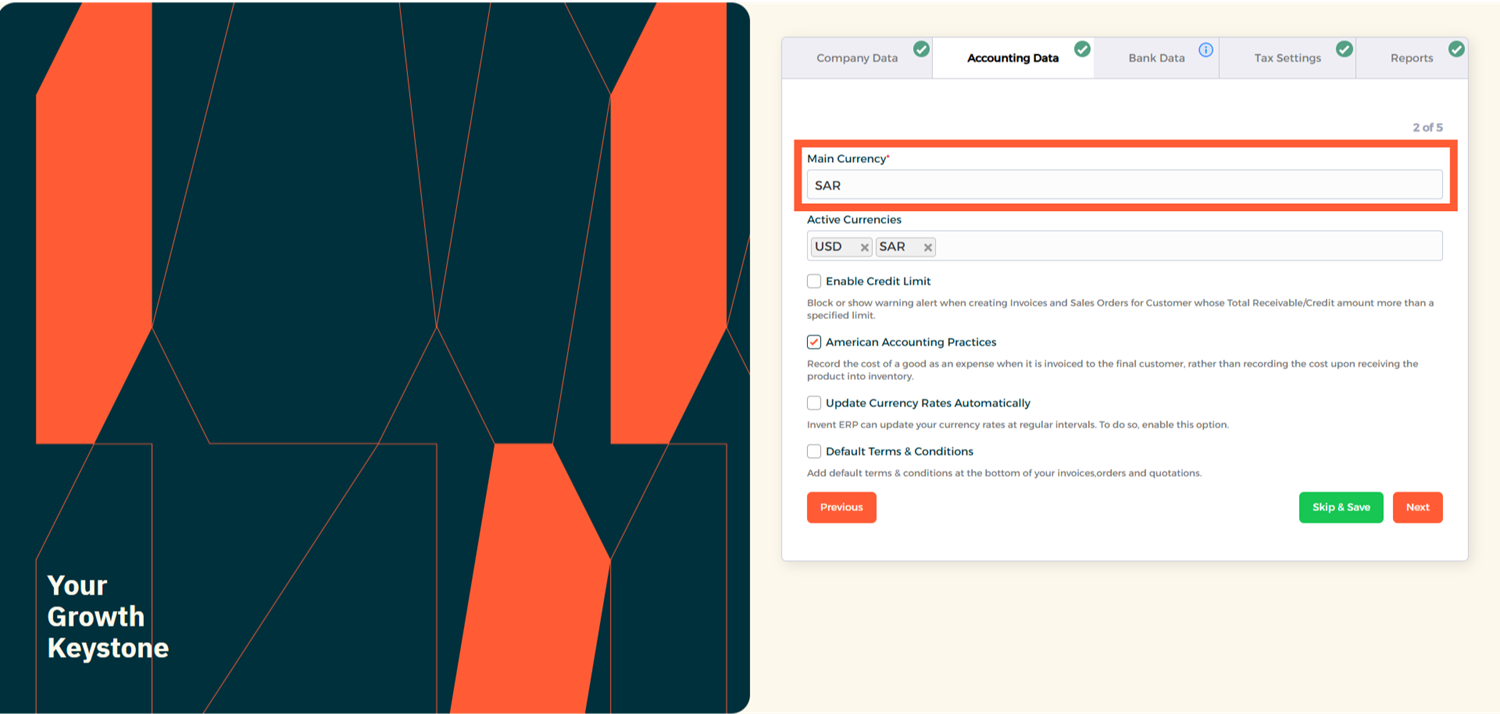
- In Accounting Data, select the correct base currency.
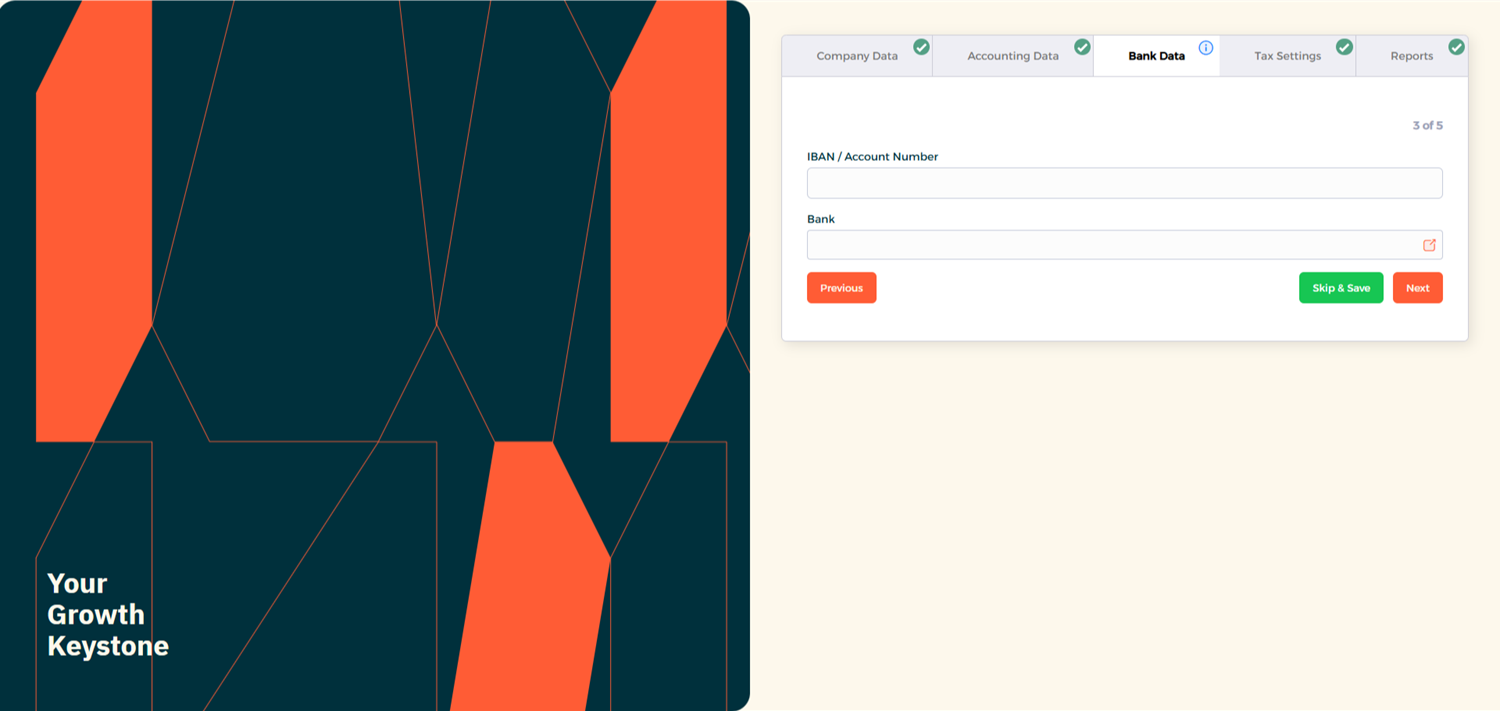
- Enter your company bank details in Bank Data.
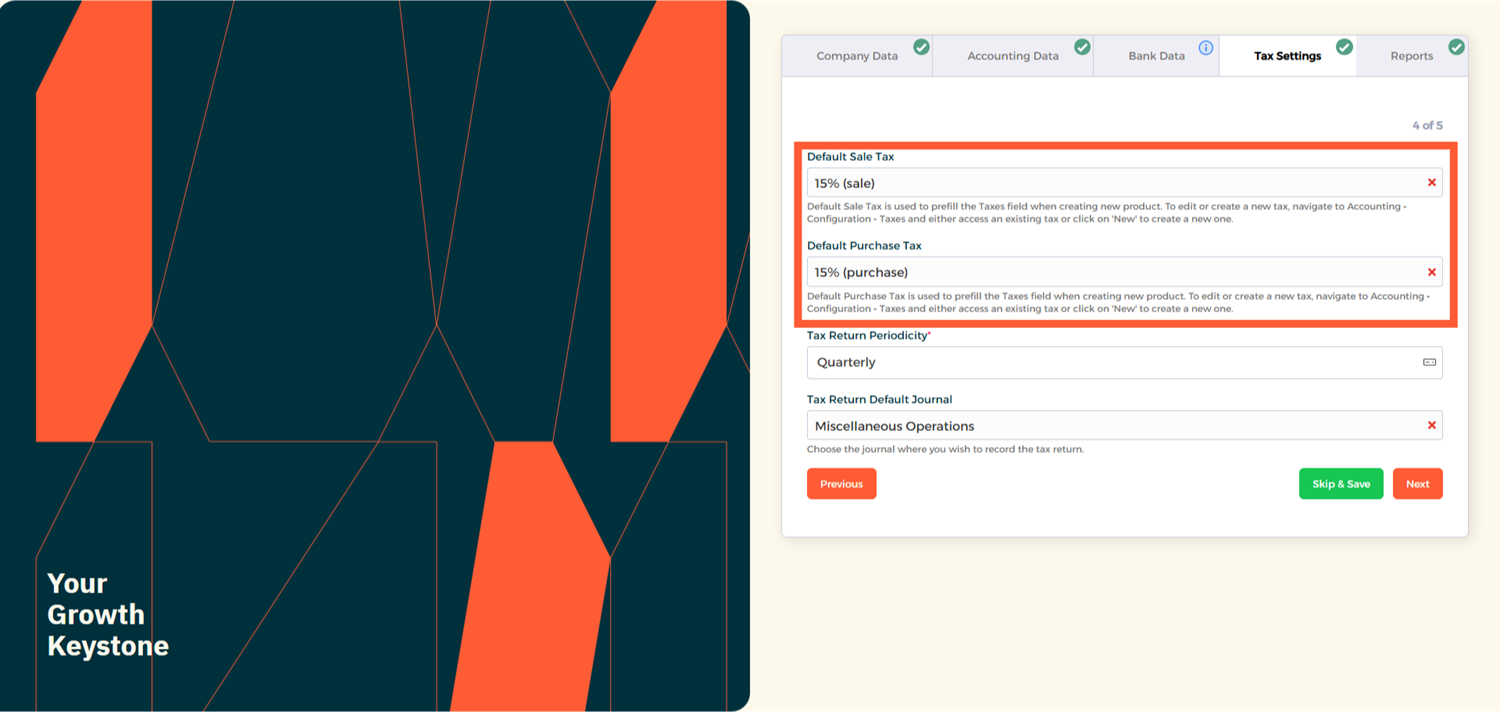
- Under Tax Settings, configure 15% VAT for Sales and Purchases.
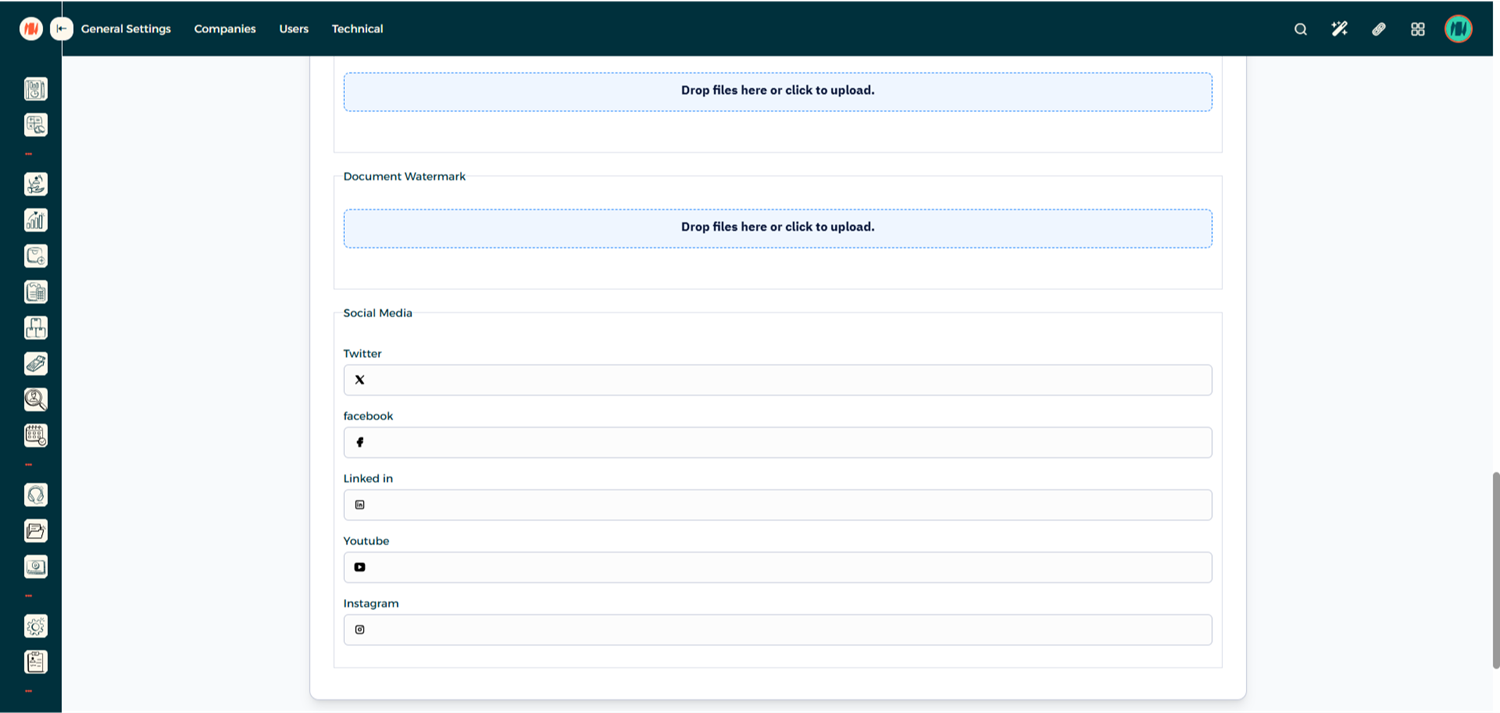
- In Reports, verify company details, upload your official company stamp, and configure your report watermark if required.
- Click Submit.

Step 3: Advanced Company Setup
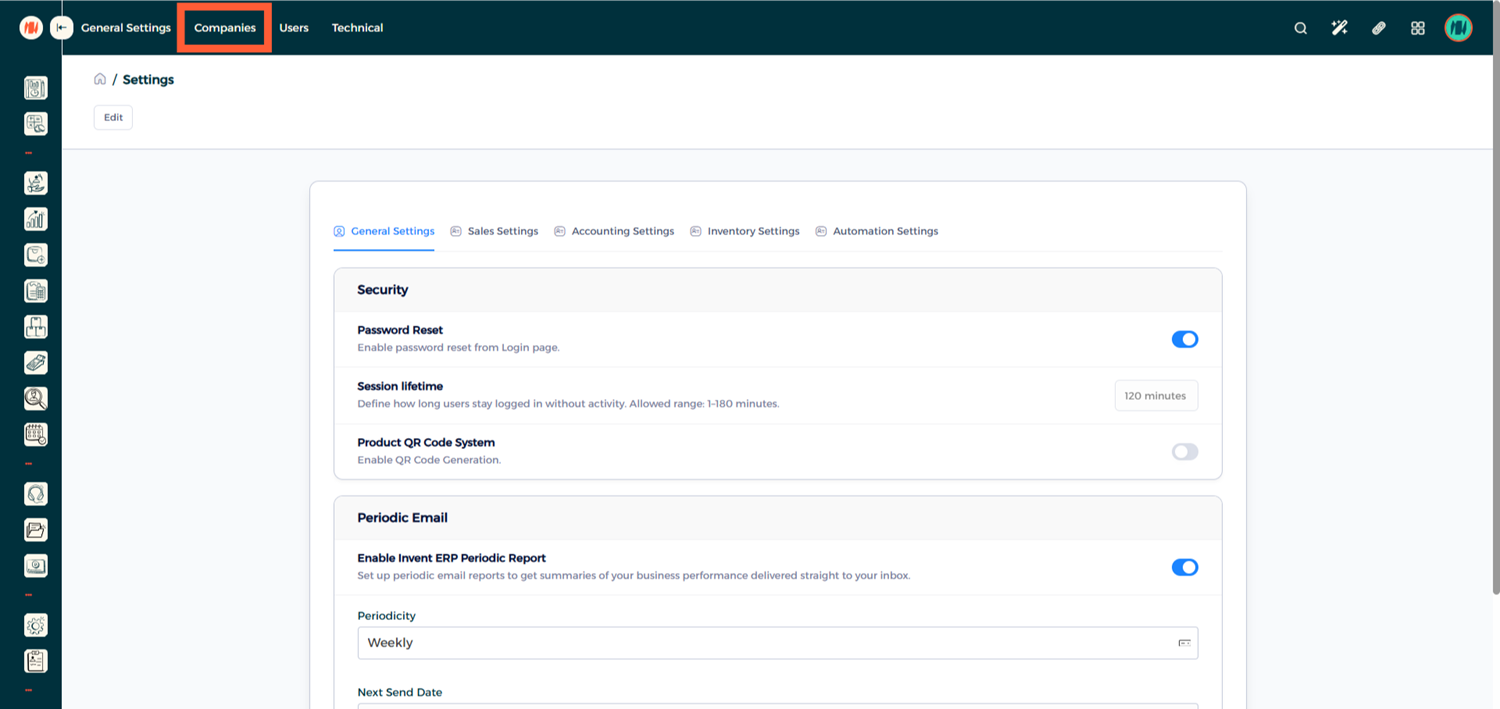
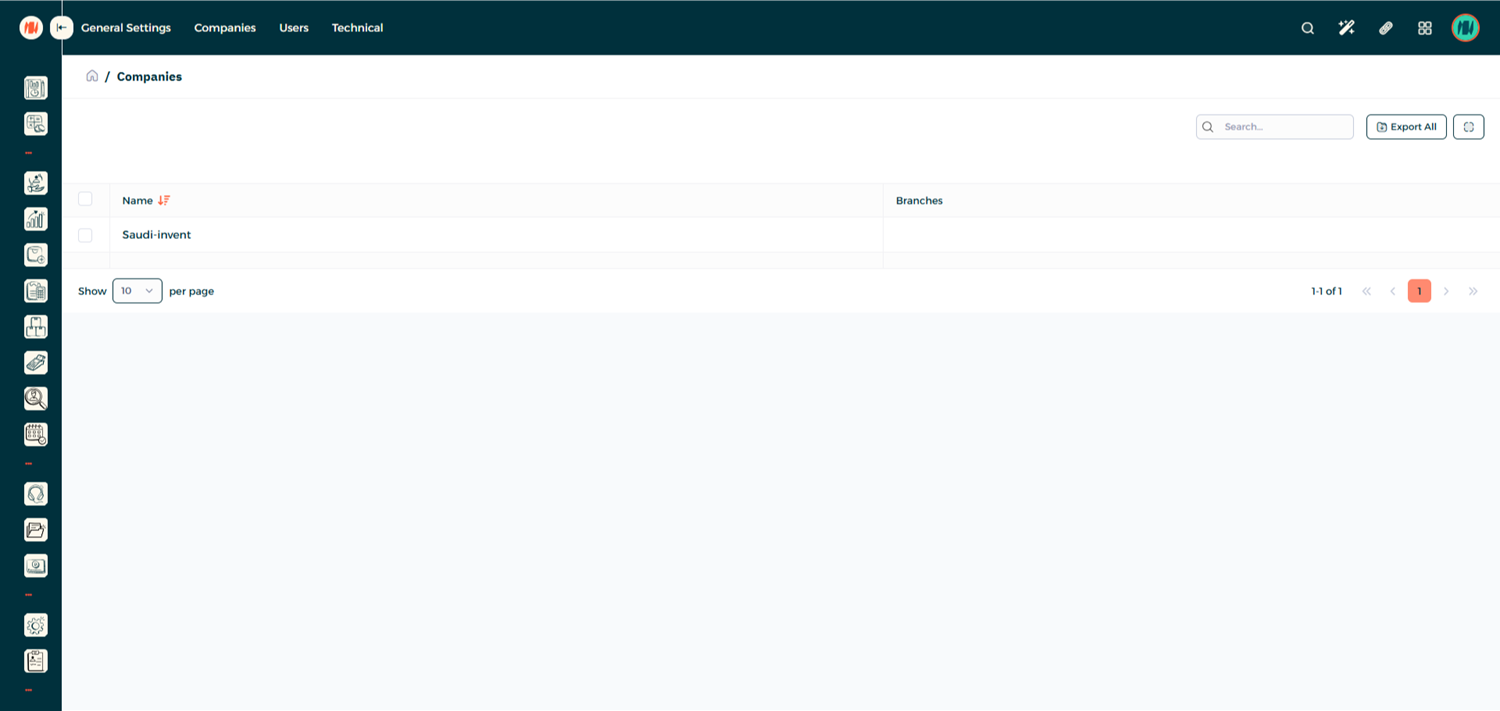
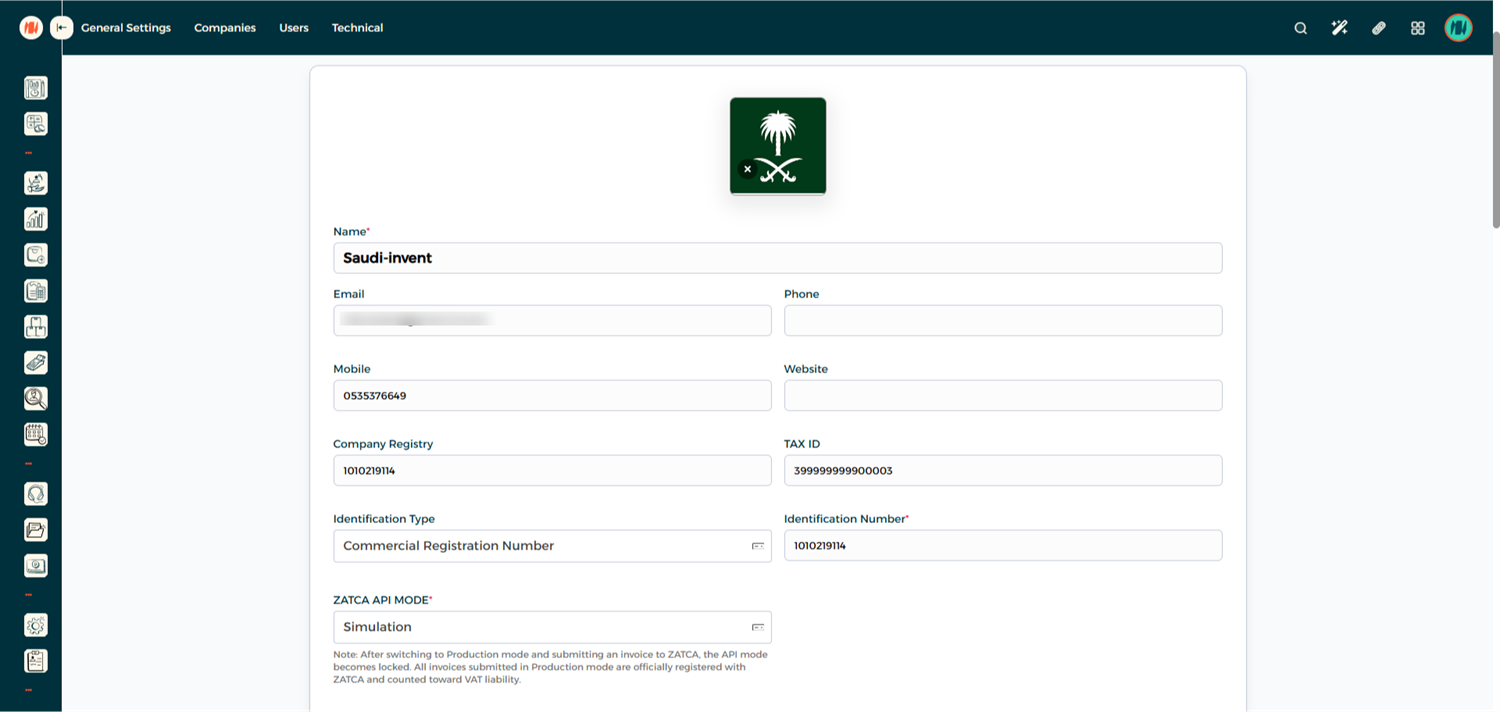
Navigate to Settings → Companies and select your company from the list.
Step 4: Review Company Information
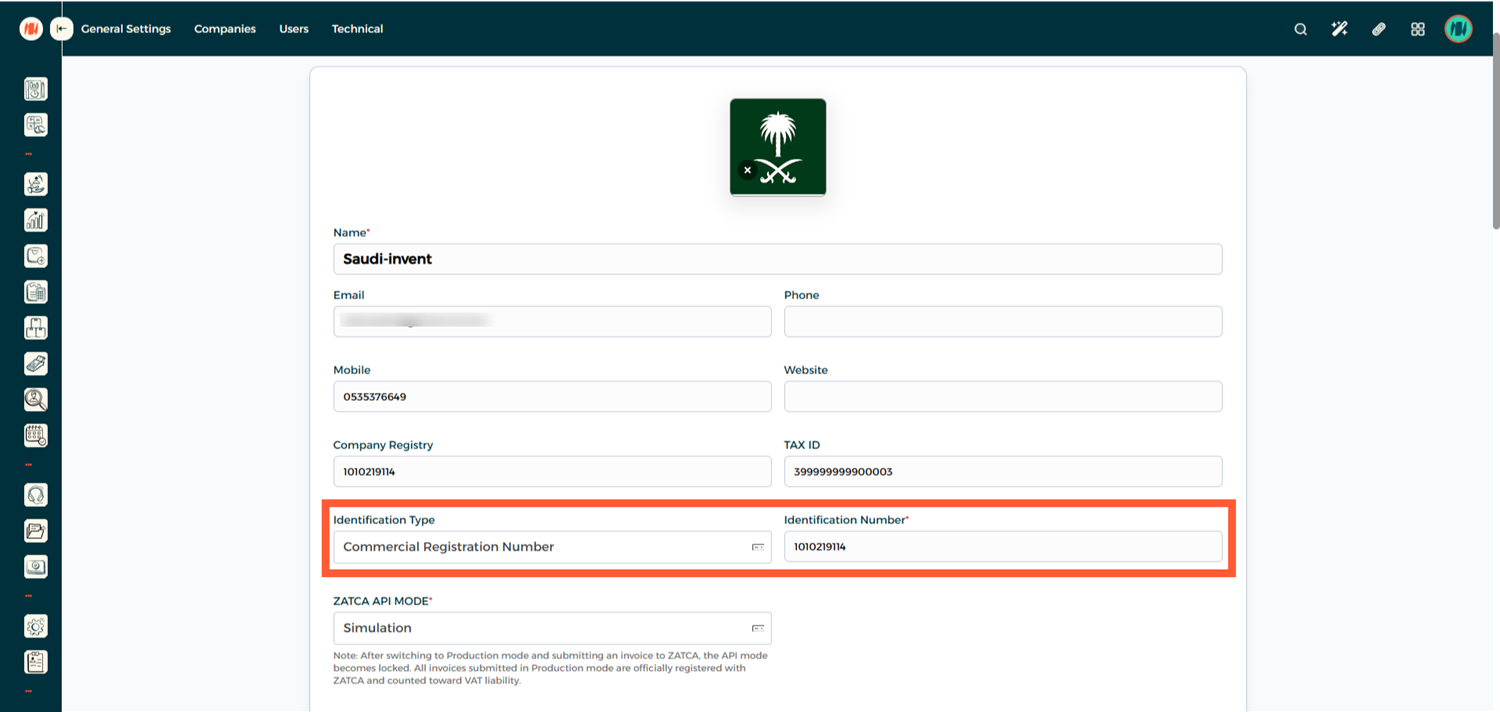
- Set the Identification Type to Commercial Registration Number and add your CR number.
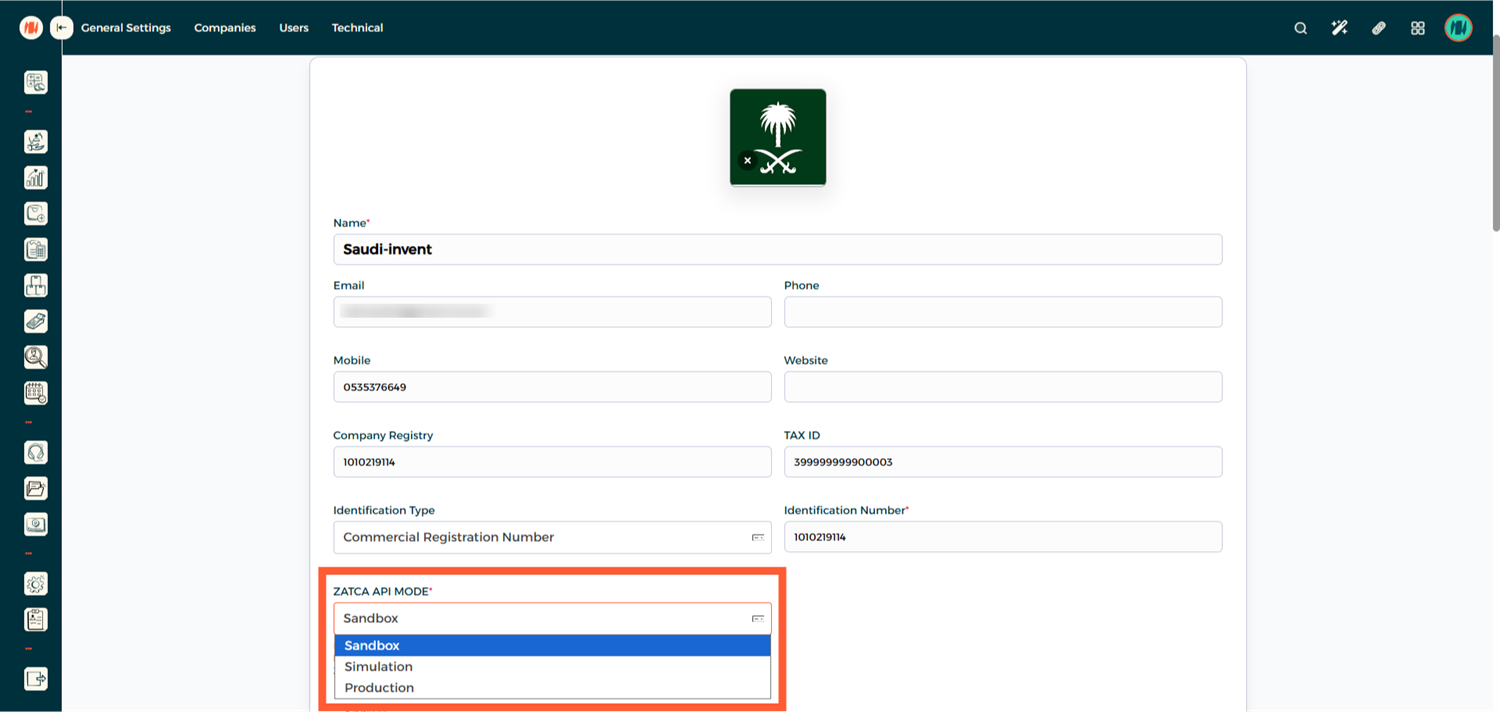
- Set the ZATCA API Mode:
- Sandbox — Used for technical testing and development.
- Simulation — Used for testing the invoicing process from the customer side.
- Production — Used for live integration with ZATCA.
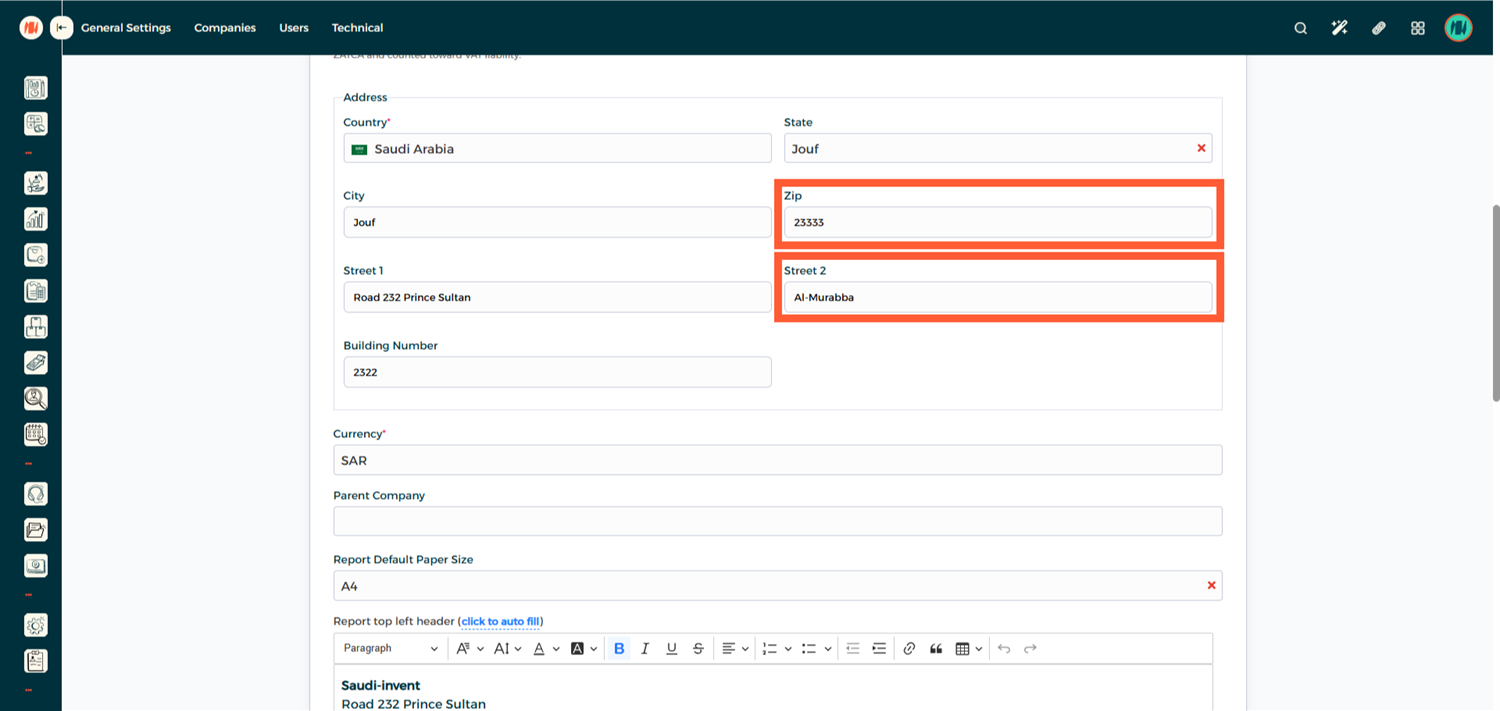
- Complete your company address, including Zip Code (Postal Code) and Street 2 (District Name).
Notes & Tips
- Always ensure your Company Name and CR Number match official government records.
- Double-check your VAT configuration (15%) for both sales and purchases.
- Start with Simulation Mode before switching to Production Mode for live invoicing.
- Incorrect company information may cause ZATCA invoice rejections.